Most email tasks can be automated with Zapier and an AI step in under 20 minutes each. The key is to identify the repetitive patterns in your inbox — the emails you sort, star, or reply to the same way every time — and map each one to a simple trigger-and-action Zap. Six of these, combined, realistically save 2-4 hours a week.
Quick Verdict
- Start with the starred-email-to-Todoist Zap: two steps, impossible to break, immediately useful.
- You’ll need Zapier Professional ($19.99/mo annual) for anything multi-step, plus an AI step for labeling or drafting.
- Build one automation at a time. Let it run for a week before adding the next.
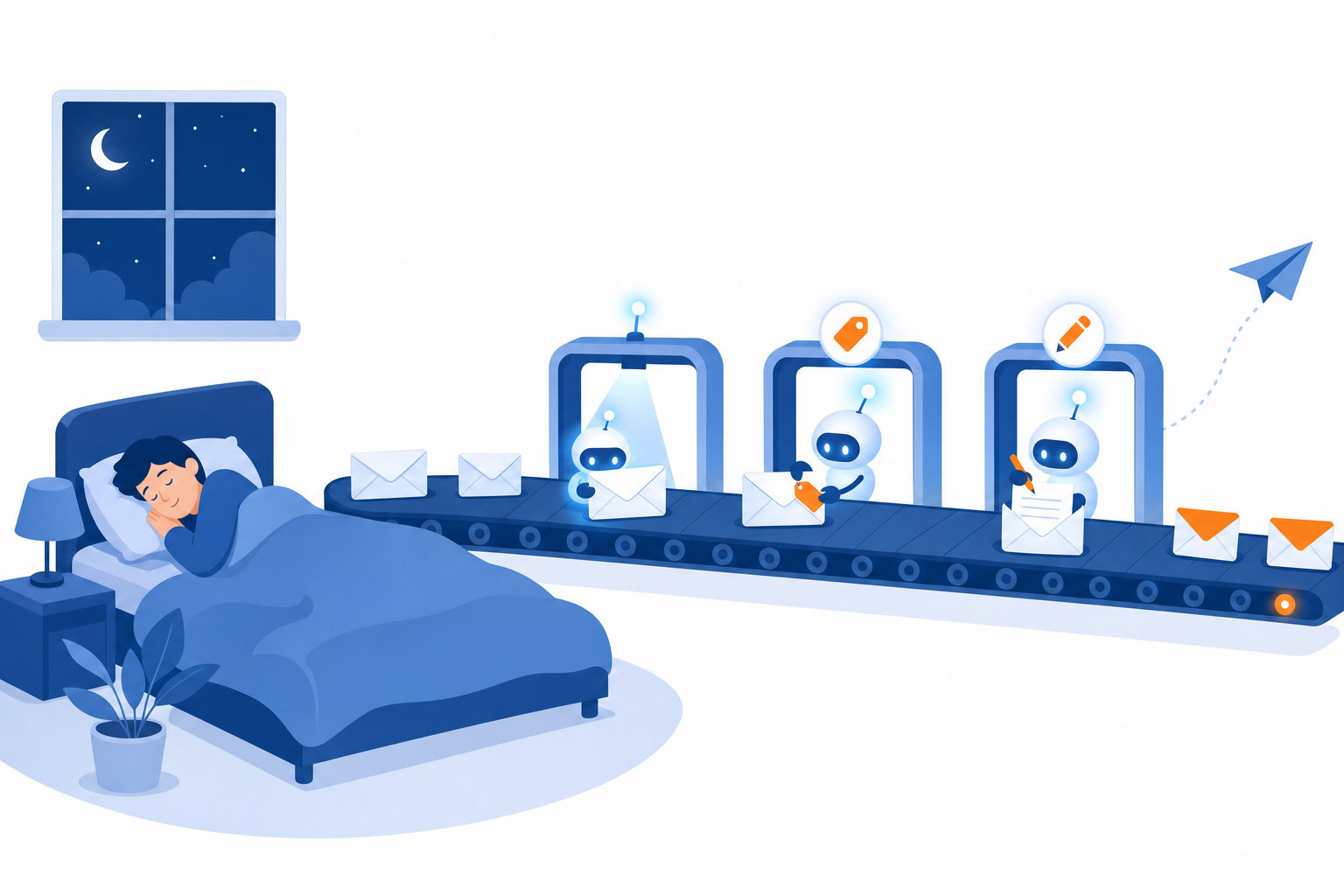
What You’ll Build
| Automation | Core Benefit | Setup Time |
|---|---|---|
| AI auto-labeling | Finds the right label in 2-4 seconds | 15 min |
| Starred email to Todoist | Turns starred emails into actionable tasks | 10 min |
| Canned reply for common emails | Saves 2-3 minutes per email | 15 min |
| Contact logging to Airtable | Creates a searchable contact record | 20 min |
| Slack alert for VIP emails | Reduces constant email checking | 10 min |
| AI draft replies | Cuts drafting time by 50% | 20 min |
How I Evaluated This
I judged each automation on setup time versus the time it actually saves per week, and on how much risk it carries if the AI step gets something wrong (which is why the drafting automations still keep a human review step). Every price below was re-verified in July 2026.
What You’ll Need
Before jumping in, here’s the setup:
- Zapier Professional ($19.99/month billed annually) — the free plan only supports single-step Zaps, which rules out most of these. Professional gives you multi-step Zaps, 2-minute trigger polling, and access to the AI step.
- Gmail or Outlook — both work. I’ll use Gmail in the examples since it’s more common, but the Outlook triggers/actions are nearly identical.
- Claude or ChatGPT (optional, for automation #6) — you’ll need an account and an API key if you want the AI drafting step. The API costs are minimal, usually a few cents per email.
That’s it. No coding. No webhooks. No developer involved.
Each automation below takes 10-20 minutes to set up once. Then it runs forever.
6 Email Automations Worth Building
1. Auto-Label Emails by Sender Type
Gmail’s built-in filters are decent for basic sorting. But they don’t understand context. They match exact text. A filter that catches “invoice” in the subject misses “please find attached the billing document.”
A Zapier + AI combo does something smarter: it reads the email and classifies it.
How to build it:
- Trigger: “New Email” in Gmail (all incoming)
- Step 2: “AI by Zapier” — use this prompt: “Classify this email into one of these categories: new-lead, existing-client, vendor, newsletter, internal, other. Email subject: {subject}. Email body (first 500 characters): {body}. Reply with only the category label.”
- Step 3: “Add Label” in Gmail — use the AI output as the label name
Now every incoming email gets tagged automatically. Your “new-lead” label fills up while you’re in meetings. You batch-process it once a day instead of triaging constantly.
Time saved: roughly 5-10 minutes a day of manual sorting, depending on email volume. That’s 40-70 minutes a week just from sorting.
One thing to watch: if the AI misclassifies occasionally (it will, especially on ambiguous emails), that’s fine. You’re not building a medical device. You’re sorting your inbox. 80% accuracy is still 80% of the sorting done automatically.
2. Star an Email, Get a Todoist Task
This one’s simple and I think it’s the one most people should build first.
Every time you star an email, Zapier creates a task in Todoist with the email subject as the task title and a link to the email thread in the description.
How to build it:
- Trigger: “New Starred Email” in Gmail
- Action: “Create Task” in Todoist — task content = email subject, description = email URL, due date = tomorrow (or leave it empty)
That’s it. Two steps.
Why this matters: starring emails is a common inbox behavior, but stars are a terrible to-do system. They live in Gmail, not your task manager. The email thread is the task, which means you can’t reschedule it, you can’t add notes, you can’t see it in context with everything else you’re doing that day.
This automation bridges that gap. You star, the task appears. Your Todoist keeps track so your inbox doesn’t have to.
Time saved: less about minutes saved, more about never losing things. The starred email backlog — the 47 emails you starred over three months and never went back to — disappears as a problem.
3. Send a Canned Reply for Common Email Types
Some emails don’t need a custom response. They need a fast, professional acknowledgment that says “got it, someone will be in touch.”
Form submissions. Speaking inquiries. Discovery call requests. “Can I pick your brain?” emails.
If you get five or ten of these per week, you’re spending 15-30 minutes typing variations of the same two sentences. Automate it.
How to build it:
- Trigger: “New Email Matching Search” — set the search to
subject:(inquiry OR discovery OR speaking) OR from:(typeform.com) - Step 2 (optional): Filter — only continue if “from” does not contain your existing client domain, so you don’t send intake replies to people who are already clients
- Step 3: “Send Email” in Gmail — your template reply
Keep the reply honest. “Thanks for reaching out — I’ve received your message and will get back to you within 24 hours.” Don’t promise things you won’t deliver, but do set the expectation so the sender isn’t wondering whether their email landed.
Time saved: 2-3 minutes per email. At 8 emails per week, that’s close to 25 minutes just on replies you never had to type.
4. Log New Email Contacts to Airtable
Every time someone emails you for the first time, Zapier creates a row in Airtable with their name, email address, the subject line, the date, and a link to the thread.
You end up with a running list of every new contact who’s reached out. Which is incredibly useful when you’re trying to remember who that person was three months later, or when you want to see how many new leads came in during a particular month.
How to build it:
- Trigger: “New Email Matching Search” — use
in:inbox -from:meto catch inbound emails, or manually label new contacts as “new-contact” and use the “New Labeled Email” trigger instead - Action: “Create Record” in Airtable — fields: Name (parse from the “From” field), Email address, Subject, Date received, Thread URL
The manual-label approach is more accurate if you want control. The search-based trigger will catch a lot of automated emails too (newsletters, notifications), so you’ll want to add a filter step to screen those out.
Time saved: 3-5 minutes per contact for manual CRM entry. If you’re meeting 10 new people a week via email, that’s 30-50 minutes a week just on logging.
More importantly, you actually have the record. Without automation, most people skip manual CRM entry entirely and the contact just… disappears.
5. Slack Notification for Emails from VIP Senders
This one isn’t about saving time. It’s about insurance.
You have 3-4 people in your life whose emails need an immediate response. An investor. A key client. Your co-founder. Your EA.
Most people deal with this by checking email constantly, just in case. That’s expensive. Every time you check email hoping for one important message, you’re also processing 40 unimportant ones.
Instead: set up a Zap that pings you on Slack the moment an email from a specific sender arrives.
How to build it:
- Trigger: “New Email Matching Search” — use
from:([email protected] OR [email protected]) - Action: “Send Channel Message” in Slack — message text: “Email from {sender name}: {subject}”
You can route to a private channel, a DM to yourself, or anywhere else that creates a reliable interrupt.
Now you can keep email closed most of the day and still know within minutes when something actually important arrives.
6. Use Zapier’s AI Step to Draft a Personalized Reply
This is the most powerful one. And the one I’d save for last, once the simpler automations are running.
Every time an email arrives that matches certain criteria, Zapier passes the content to Claude, Claude drafts a reply in your voice, and Zapier deposits the draft in your Gmail thread. When you open the email, the response is already there waiting for you to review, tweak, and send.
The real magic here is something I mentioned earlier: the drafting is the hard part. The actual deciding-what-to-say-and-how-to-phrase-it. If Claude handles the first draft, your job shrinks from “write a reply” to “read and approve.” That shift is five to ten minutes per email. At ten emails per day, that’s an hour back.
How to build it:
- Trigger: “New Email Matching Search” — pick a specific category. Discovery call requests work well. Client questions work well. Start narrow.
- Step 2: “Claude” (via Zapier’s Claude integration) — prompt: “You are drafting a reply on behalf of {your name}. Your tone is warm, direct, and brief. Here is the email you received: {email body}. Draft a reply that acknowledges their message, addresses their question, and closes with a clear next step. Do not use corporate jargon. Keep it under 150 words.”
- Step 3: “Create Draft Reply” in Gmail — use the Claude output as the body
This “Create Draft Reply” action is actually unique to Gmail on Zapier. It deposits the reply directly in the thread as a draft, not a new email. When you open the thread, you see both the original message and the draft reply ready to send. You don’t have to hunt for it in your Drafts folder.
The key to making this work well is the prompt. Spend 15 minutes on it. Give Claude specific examples of how you actually sound in email. The more specific you are, the less editing you’ll do on the output.
Time Savings Recap
| Automation | Setup time | Weekly time saved |
|---|---|---|
| AI auto-labeling | ~15 min | 40-70 min |
| Starred email → Todoist | ~10 min | Ongoing (no lost tasks) |
| Canned reply for common emails | ~15 min | 20-30 min |
| Log contacts to Airtable | ~20 min | 30-50 min |
| Slack alert for VIP emails | ~10 min | Reduces constant checking |
| AI draft replies | ~20 min | 50-100 min |
Realistic combined savings for someone with a full inbox: 2-4 hours per week. Not counting the mental overhead of not having to context-switch into email every 20 minutes.
What This Costs
Zapier Professional is $19.99/month billed annually. Most of these automations use 2-3 tasks per trigger.
If you get 50 emails a day and only run automations on 20% of them, that’s 10 triggers per day, 300 per month, using maybe 900 tasks total. That’s comfortably inside the 750-task limit at the base tier for lower-volume users… but if you’re processing hundreds of emails, you’ll want to upgrade to the next task tier before you hit limits mid-month. Zapier shows your usage clearly in the dashboard.
The Claude API costs are separate. For email drafting, GPT-4o Mini and Claude Haiku are both cheap options if you want to minimize costs. Claude Sonnet produces noticeably better drafts but costs a bit more per query. For occasional use (say, 20 email drafts per week), you’re looking at pennies.
Common Mistakes to Avoid
Making the first Zap too complex. The AI auto-labeling one is tempting to start with because it sounds impressive. But start with the starred-email-to-Todoist Zap. Two steps, impossible to break, immediately useful. Get one Zap running reliably before adding more.
Not filtering out automated emails. If you trigger on “New Email” without any filtering, your Zaps will fire on every newsletter, notification, and automated email you receive. Filter by whether the email has an unsubscribe link, or use “New Email Matching Search” with from:(-mailchimp.com -notifications-) to knock out the obvious junk.
Sending automated replies to clients. The canned reply automation should never fire on existing clients. A longtime client who emails a question and gets a generic “Thanks for reaching out, I’ll respond in 24 hours” reply is going to notice. Add a filter step to screen by sender domain before any reply goes out.
Forgetting to review the AI drafts. The whole point of the draft-reply automation is that you still review before sending. Set aside 5 minutes twice a day to check your Gmail drafts folder. Don’t let the drafts pile up unreviewed.
FAQ
Does this work with Outlook instead of Gmail?
Yes. Zapier has a full Microsoft Outlook integration with similar trigger events. “New Email,” “New Email Matching Search,” and flagged emails all work. The Outlook “Create Draft” action works too. The main difference is that Outlook’s “Create Draft Reply” action isn’t quite as clean as Gmail’s version, so you may need to handle threading manually.
Do I need the Claude API separately from Zapier?
Yes. Zapier’s AI step requires you to bring your own API key. Go to claude.ai to sign up for Anthropic’s API, then add the key in Zapier’s app connections. Alternatively, you can use ChatGPT (OpenAI API key) or Gemini (Google AI Studio key) in the same AI step — pick whichever model you’re already paying for.
Is Zapier safe for processing email content?
Zapier is SOC 2 Type II certified and processes business data for millions of companies. That said, you’re passing email content through their servers. For anything that involves sensitive personal data, healthcare records, or legal matters, check your compliance requirements before automating. For most business email — proposals, inquiries, scheduling, vendor communications — it’s fine.
What if the AI labels an email incorrectly?
It will happen occasionally. Claude and ChatGPT are not perfect classifiers, especially on ambiguous emails. Two options: add a catch-all label like “ai-review” for anything the model isn’t confident about (you can detect low-confidence outputs by asking the model to include a confidence score in its output), or just accept that 90% accuracy is still a major improvement over zero automation.
Can I use Zapier and Lindy together?
Yes, and I’d actually recommend it. Use Zapier for these six rule-based automations — they’re predictable, they fire on clear triggers, and Zapier handles them reliably. Use Lindy for email triage that requires judgment: routing ambiguous emails, handling replies that need context from previous conversations, managing follow-up sequences. They solve different problems and work well together.
If you want to go further than these six automations, I run a one-day AI workshop where we build your first agent live. You leave with something working, not just a plan. Check out the AE AI Workshop.
Next Step
Recommended for you
Want the full system? 25X is the flagship productivity system we teach.
Explore 25X →