

When talking about automation, the first thing that comes to my mind is… The Jetsons. It was an animated series that I grew up with as a child of the 80s. Vacuum cleaning? Press a button. Give the dog scratchies? Press a button. Although we haven’t reached that YET, there are already a lot of things we can automate.
Automation and Time
Why automate? Convenience? Definitely. But there is something so valuable that we earn when we automate. Time.
Time is something that we have talked extensively about within our TEA Framework Series. TEA stands for Time, Energy, and Attention. When we don’t have enough time, we will not be able to finish projects that are important to us or worse we are always in a state of panic. Find out more about the TEA Framework here.
Automation will help you save time and help you finish important projects in your life that will ultimately help you reach your goals. It is not just about turning the lights on or off with an app or arriving home to a well-lit house. We can automate several areas in our life and last week Brooks shared five ways you can do so.
This time we’re going to focus on automation using our computer and mobile phones. We also talked about this during one of our podcast episodes. I suggest you listen to it and find out how Brooks and Thanh personally apply it to their computers and mobile devices.
Here are five ways you can automate your computer and phone
1. Keyboard shortcuts
The most popular keyboard shortcuts, that we all know about, are copy and paste. You can always use your mouse to copy and paste but why use it when it’s so much faster to just use Ctrl + C and Ctrl + V. But those are not the only keyboard shortcuts available to you.
Most applications come with its own keyboard shortcuts and you can verify this by checking their Help files. Just like how we got used to the shortcuts for copy and paste, the more you use a shortcut, the more ingrained it becomes that you don’t even have to think about it anymore. Don’t feel overwhelmed by the number of shortcuts available. Instead, focus on one or a few that you use regularly and start off from there until your fingers memorize it all. Think of it as muscle memory.
A high-value category of keyboard shortcut is moving around in text. Learn the keyboard shortcut for going to the next/previous word (option-left/right on Mac and ctrl+left/right arrow on Windows) and the start/end of a line (Command left/right on Mac, home/end on Windows) on your computer. Once you know those, you can fly around a document, email, or anything else you are writing.
CheatSheet is a great Mac App that detects what application you’re using and then tells you what shortcuts are available for that application.
There are also a lot of web-based applications that have keyboard shortcuts and one of them is Gmail. When you press the ? key, a pop up with the shortcuts will appear.
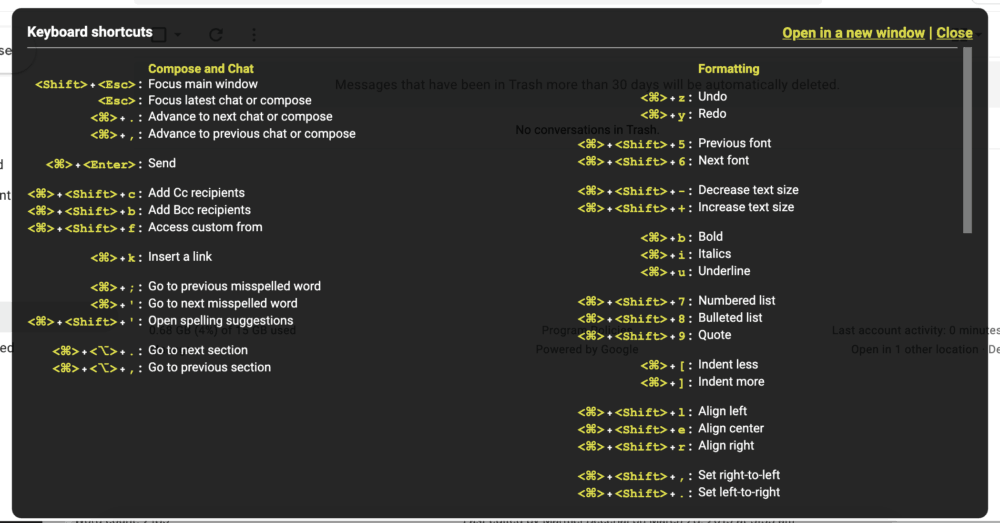
By the way this is a pro-tip — many programs and web-apps have a keyboard-shortcut for keyboard shortcuts. Once you learn that, you can quickly reference the list from wherever you are and it will make it easy to learn.
2. Command launcher
This is a nifty type of application that you can install on your computer that allows you to execute commands, open files, open applications, manipulate files, search for files–all by using a command launcher app.
When you don’t use a command launcher, you can open a computer application by doing one of the following:
- F4 to show all the apps and then search for the app (Mac)
- Open Finder, go to Applications, then look for the app by scrolling (Mac)
- Click on the Start Button, Click on All Apps, go through the different app folders, until you see the app you’re looking for (Windows 10)
- Click on the Windows key and look for the App (Windows 10)
What about opening the calculator? Same. You need to open the calculator app first.
But when you have a Command Launcher installed, the process becomes shorter and more efficient. For example, I want to know what is 123 * 456. All I have to do is press Opt + Spacebar and type in 123*456 and I get the answer immediately (this is using Alfred).

You can also use command launchers for Google search, Google Drive search, Google Maps search, Contacts look-up, and a whole lot more.
Here are some Command Launcher apps that we recommend:
- Alfred (Mac)
Almost everyone on the team uses Alfred, including me. You can use Alfred to launch apps, launch websites, search for files on your computer. It also has a clipboard history that can come in really handy if you do a lot of copy and pasting.
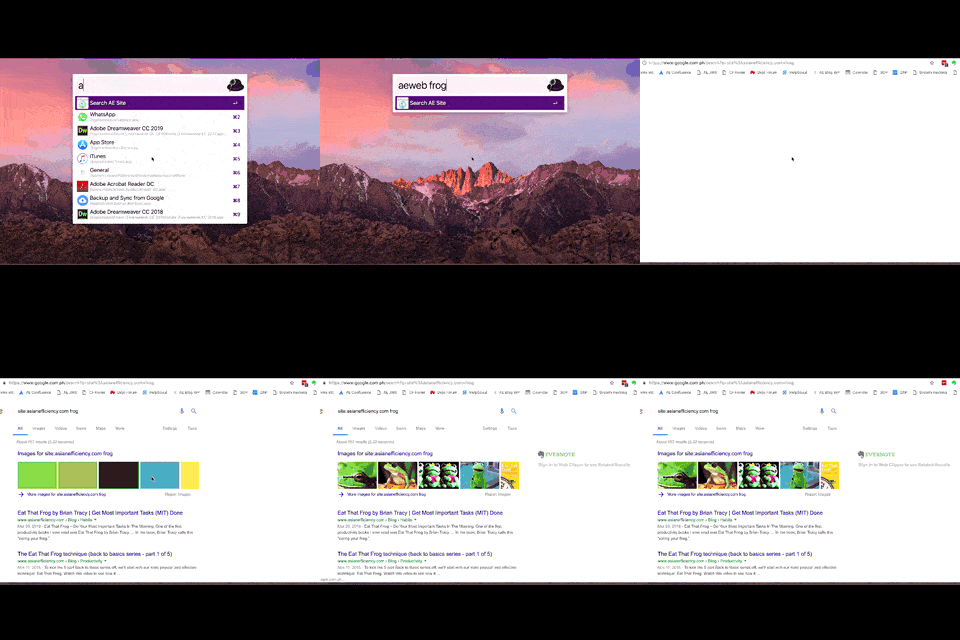
You can also download and use Alfred for free and if you decide that you want to use workflows and themes, you can upgrade and purchase the Alfred Powerpack for $26 USD.
- LaunchBar (Mac)
This is another AE favorite that Thanh personally uses. The main features are the same with Alfred.
LaunchBar is $33 USD.
- Keyboard Maestro (Mac)
Aside from the similarities with Alfred and LaunchBar, Keyboard Maestro can use triggers, send messages, and etc. A license costs $36 USD.
- Spotlight (Mac)
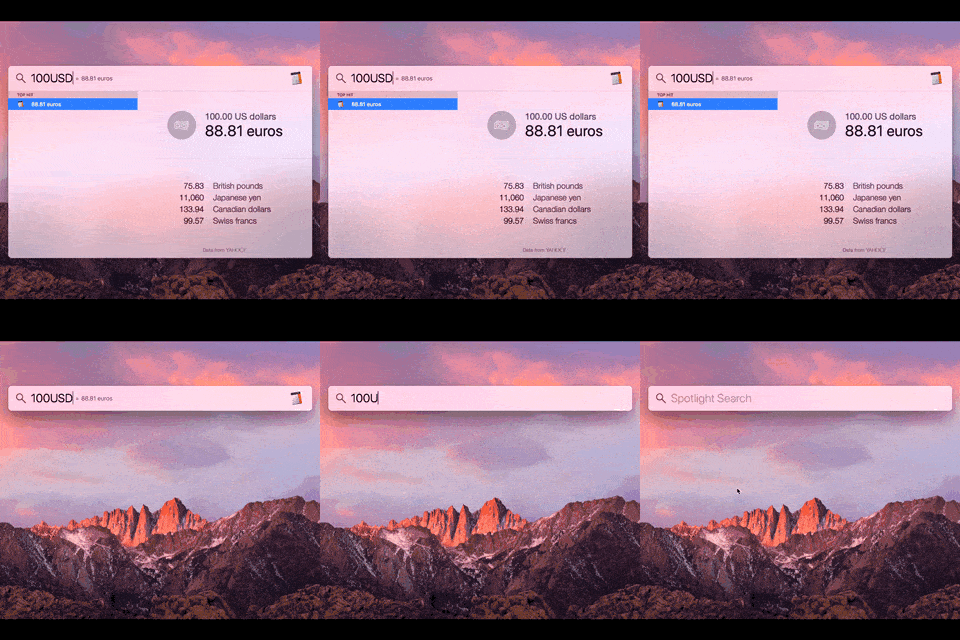
This is built-in the Mac and the shortcut for this (unless you changed it) is Command + Space Bar. One cool thing about Spotlight is currency conversion. Type in 100USD and it gives you the exchange rate for other currencies.
- Windows Search (Windows)
If you’re a Windows user, you can use the built-in search on the lower right-hand corner of your screen.
- Launchy (Windows)
A Windows app that you can download that works like Spotlight.
3. Text Automation
There isn’t a day that I do not use text automation on my computer. Text automation apps let you use small snippets of text that expands to a longer block of text. For example, I type in Asian Efficiency several times a week. But by using text automation, all I have to do is type ;aen and it then translates to Asian Efficiency.
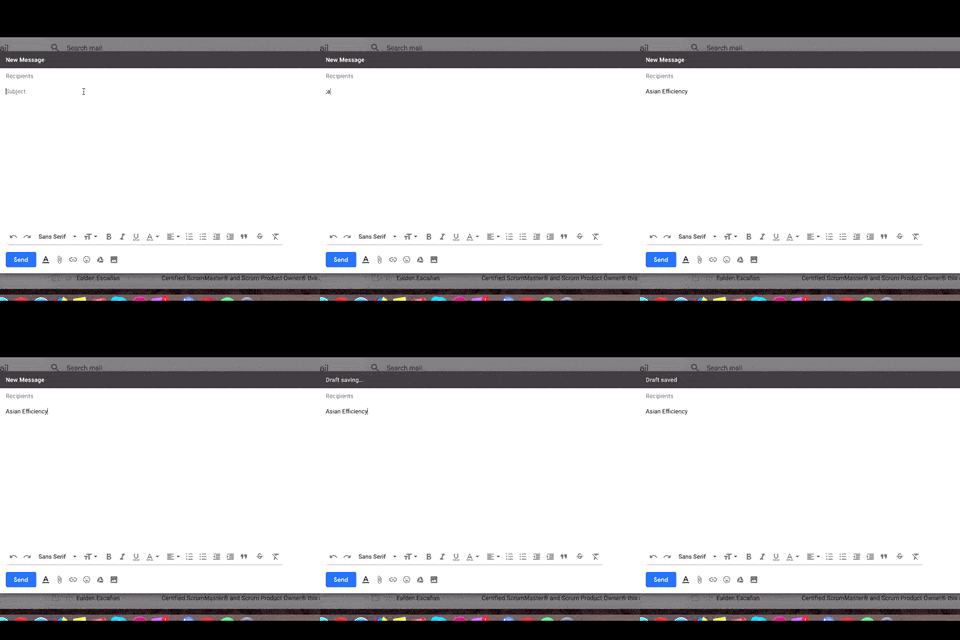
You can use it for larger blocks of text like email templates:
How are you? My name is Marmel and I handle HR for Asian Efficiency (www.AsianEfficiency.com). I would like to set up a 30min interview with you. You can use this link: https://calendly.com/marmel/30min and choose the date and time that works best for you.
Please add my Skype account:
If you have any questions, please let me know.
Best,
Marmel
That block of text above? Took me 1 second to write. I just typed in ;int and viola.
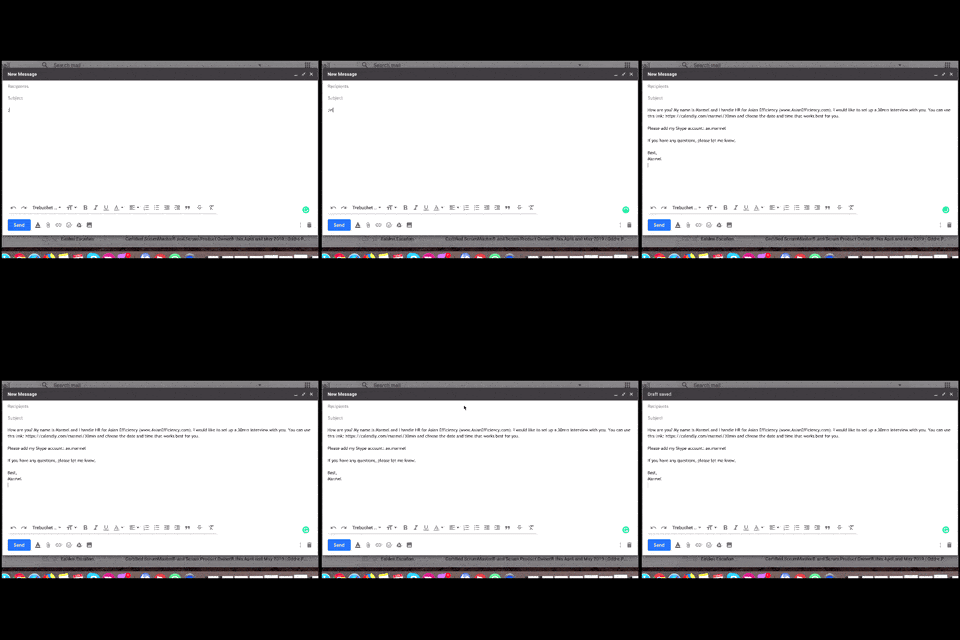
You can set snippets for dates, phone numbers, email addresses, links, membership IDs, and you can even set it to fill out a form for you. I got so used to it that when I went to LTO (similar to DMV) to renew my driver’s license, I used my email snippet when I was filling out the form. But alas. It didn’t work because aside from not having a Text Automation application installed, it was a paper form that I was filling out.
Here are some Text Automation Apps that we use and recommend:
- TextExpander (Mac and Windows)
My absolute favorite and the app I used to showcase in the above gifs. You can create a snippet that would fill out a form for you because there is a snippet that you can add so that it tabs from one text box to the next. Awesome, right?!
If you are part of the Dojo, our online productivity community, you get 30% off the TextExpander Lifehacker Plan.
- aText (Mac)
This comes with built-in snippets that you can use as well as import data from other Text Automation apps like TextExpander and even a .csv file. They have a 21-day trial but you can purchase it for $4.99 USD.
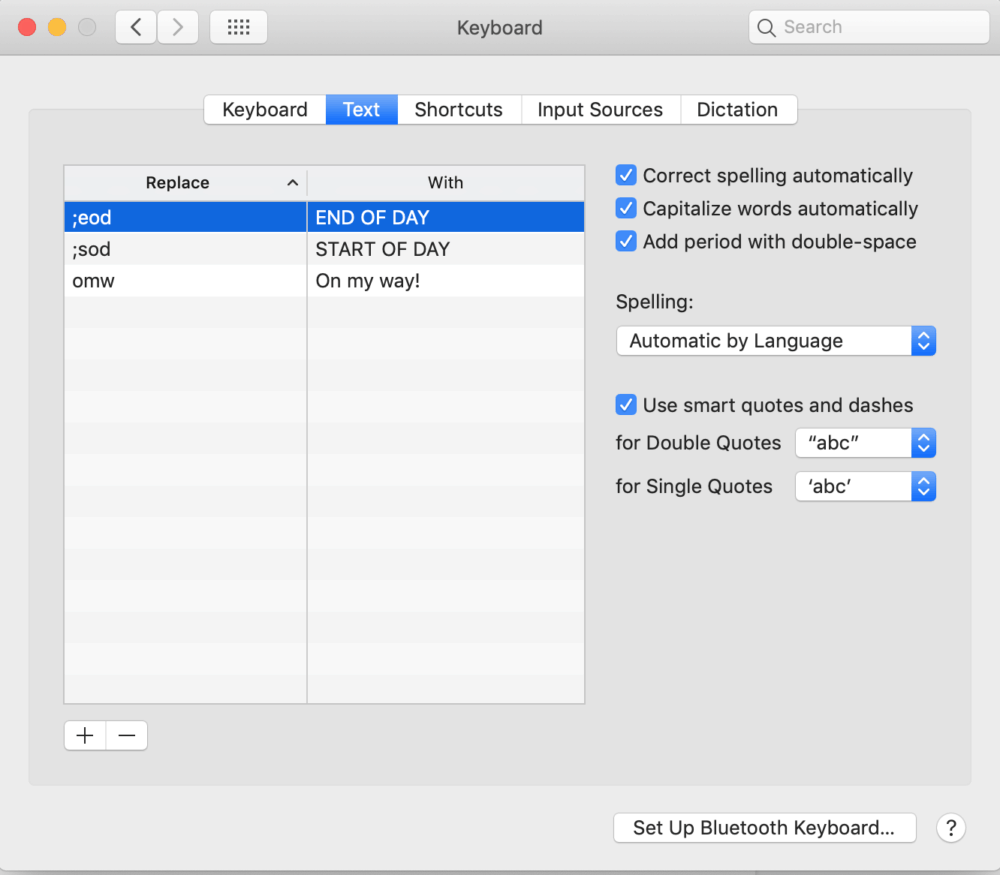
- Built-in expansion on the Mac
You can check it out by going to System Preferences -> Keyboard Preferences
- PhraseExpress (Windows)
Think of it as the TextExpander for Windows but made by a different company.
4.File Automation
File automation makes use of rules on different folders on your computer. For example, every time there’s a file added to your desktop with ‘screenshot’ on the file name, it gets transferred directly to a folder within Downloads called Screenshots. Another example is cleaning out files older than a week from your downloads folder.
The best thing about file automation is that it keeps your hard drive organized by:
- sorting photos by location or any other metadata
- sending files to other apps such as Evernote
- clean out your folders
- sort your files by type to subfolders
- renaming files and using or specifying a naming convention
- setting up view settings per folder
- moving files automatically
We’ve talked about file automation in our blog before and you can check those out here and here.
Here are some of our recommended apps:
- Hazel (Mac)
Hazel can watch folder for you and automatically organize it as well. For example, you can tell Hazel to delete duplicate files from your Downloads folder or delete incomplete downloads after a week.
Hazel is a powerful tool because you can create and use workflows that will help you with your file organization.
- Pathfinder (Mac)
Pathfinder is nearly 20 years old and which started a simple folder management application has now evolved into a much powerful one.
This app also integrates with Dropbox so aside from organizing your hard drive files, you can also organize your Dropbox files.
- DropIt (Windows)
DropIt is the Windows version for file automation. You can ‘drop’ different files and folders and DropIt can sort it for you according to the rules you’ve set.
Aside from being free, DropIt is also an open source application.
5. Web / Mobile Automation
There are other ways you can automate technology without necessarily downloading an app.
Here are some services that we recommend and how you can use them:
Asian Efficiency uses Zapier to connect apps that we use. For example, we use it to link Jira to our Slack channels for updates like when a task is marked as done, one of our Slack channels will get the update and the team is notified.
You can use Zapier with a lot of apps and web apps like Gmail, Dropbox, Google sheets, Trello, Asana, FB pages, and a whole lot more! Like more than 1,000 apps more. You can setup a workflow that every time you receive an email (through Gmail) with an attachment, the attachment is copied to your Dropbox folder, and you get a notification in Slack. That’s just one thing that you can do.
There’s a whole world of possibilities with Zapier. Go ahead and check it out.
If this, then that. That’s what IFTTTT stands for. It’s a free (yes free) web-based application and mobile app that you can use to connect your services together. When we say services, we’re talking about your speakers, to your blinds (yes, window blinds), to your Samsung Washer, to your Pocket app, to MailChimp, to your Google Calendar, and a whole lot more.
Here are some things that you can do with IFTTT (called applets):
- Every time you add a contact to your iOS device it also adds that contact to your Google Contacts
- Tell Alexa to send your grocery list to your email
- Connect Stripe with Google sheet and automatically log all Stripe transactions to the Google sheet
- Get notified when the CDC (Center for Disease Control and Prevention) releases a new food safety update
That’s not even 1/8th of what’s available for you plus you can create your own applets.
- Google Alerts
A free Google service that will send you email notifications if there’s new web content on the topics that you are interested in.
- Siri Shortcuts
Ask Siri “What can you do?” and it will list down some of the things it can do for you like:
- make a phone call or Facetime Call
- launch apps
- send messages
- Apple pay
- set up a meeting using the calendar app
- Translate
- give you directions
- play music
- send an email
- find a phone number or address from your contact list
- take notes
- and other app-specific commands such as PayPal, OmniFocus, Jira, Facebook, Uber, Zoom, and etc!
You can also automate your posts in social media and MeetEdgar is one app that can schedule, automate, and recycle content for you. It can even write for you! When you share articles or blogs, it will write the status for you based on the article or blog that you are sharing.
Action Items
We just shared a lot of apps and it can be overwhelming and not know where to start. If you are not going to install any of the apps mentioned, that is totally fine. But there is one thing that you should do and take action on.
Keyboard shortcuts.
It’s there already. It’s free. You are, more or less, already using it. Just add more shortcuts to your life.
Once you’ve mastered keyboard shortcuts, then pick one tool to implement and set it up, use it, and start saving time.

Would you know good examples of email automation software like Mailshake?