Every Sunday at 3pm, I close my laptop, open a specific template, and spend 25 minutes preparing for the week ahead.
That’s it. Same time, every week, for years.
The first few times I did it, it took over an hour. Messy. Felt like homework. Now it’s one of the things I look forward to most. Not because I love planning, but because those 25 minutes are the reason my weeks don’t spiral.
If you’re looking for a weekly planning template, you’ve probably already seen the lists — the downloadable PDFs, the 47-block Notion setups, the “ultimate productivity planner” that somehow requires three hours to fill out on a Sunday. That’s not what this is.
This is the honest version: which templates actually work, what makes them survive contact with real life, and how AI can now do the heavy lifting on one of the most annoying parts of the whole process.
Weekly review vs. weekly planning: They’re different things
Before any template recommendation, you need to know this, because most articles get it wrong.
Weekly review = looking backward. What happened last week? What did I learn? What open loops are still floating around in my head? What should I stop doing?
Weekly planning = looking forward. What are my commitments this week? What are the three most important outcomes I want? Where does the real work go on the calendar?
They’re two different mental modes. Review is reflective. Planning is decisive.
The mistake people make is treating them as the same thing. You sit down to “do your weekly planning” and you end up in a messy loop of processing last week while trying to figure out next week at the same time. An hour later you’ve accomplished neither.
Do review first. Then plan. In that order.
The templates below are organized with that in mind. Some are primarily review tools, some are planning tools, and one (the AE template) handles both cleanly.
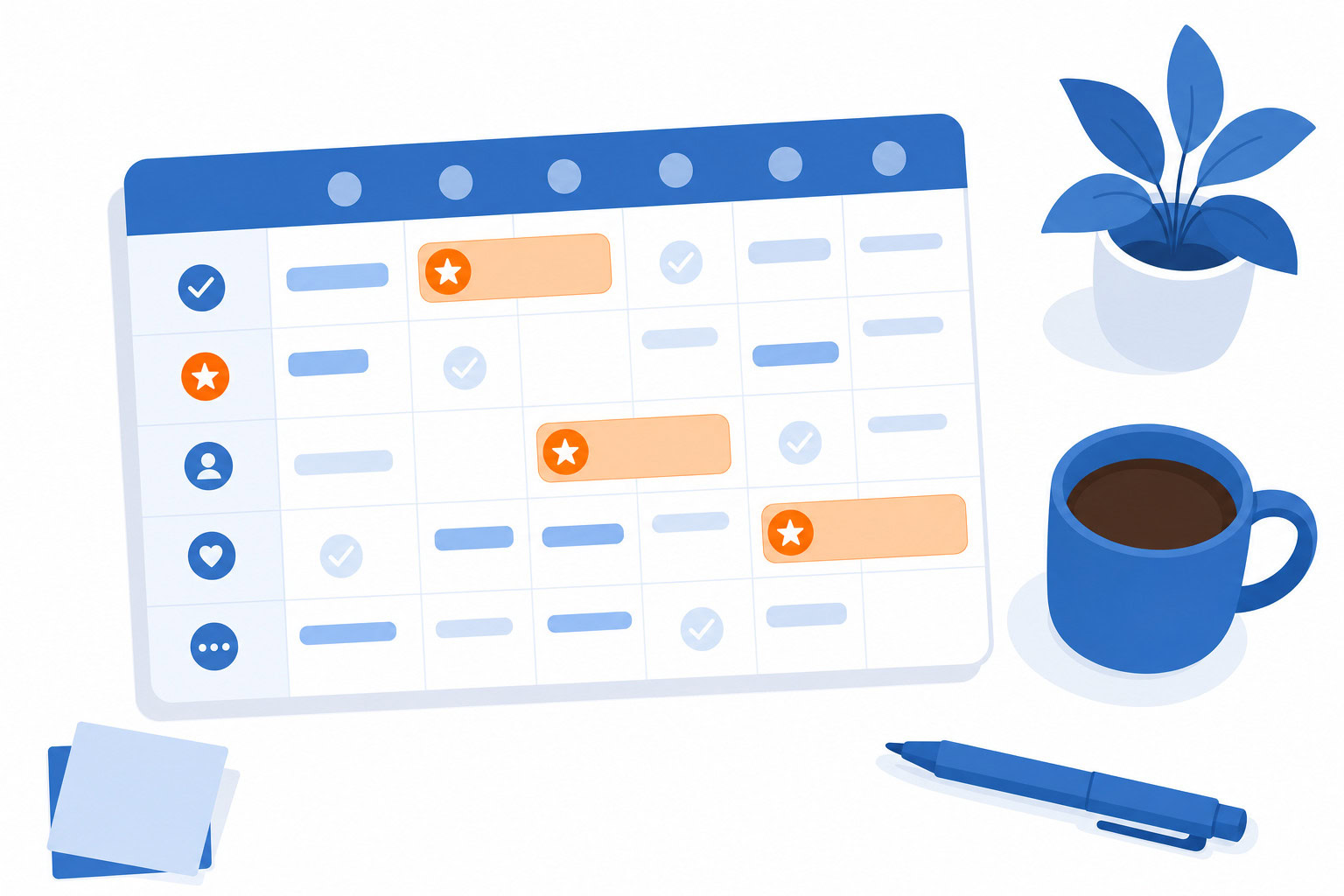
The 5 best weekly planning templates
1. AE’s Weekly Review Template (Free)
This is the one I give people when they ask me what I actually use.
The template walks you through a calendar review section, a goals check-in, a place to capture open loops, a block for next week’s commitments, and the elimination question (“what can I stop doing?”). That last one gets skipped in most templates. It’s also the most valuable part of the whole review.
My Sunday routine at 3pm: I open this, go through each section in order, and I’m done in 25 minutes. The speed comes from the template being right-sized. There’s nothing in there I don’t need. No 14-section deep-dive. Just the five things that matter.
If your weekly review keeps not happening, I’d put money on the problem being one of two things: no fixed time, or no template that makes it easy to start. This one solves the second problem.
Get the AE Weekly Review Template
If you want the full system behind the template, we also have the Weekly Review Blueprints course. That’s the detailed walkthrough of every section, how to handle edge cases, and how to build the habit so it actually sticks.
2. Notion Weekly Planner (Free, from the Notion gallery)
If you’re already living in Notion, there’s no reason to add another tool for weekly planning.
The Notion Marketplace has a solid collection of weekly planner templates. The best ones for actual use (not just screenshots) are the simpler ones with daily views, a goals section, and a task database that connects to your existing Notion projects.
The 2026 Weekly Planner template from the Notion gallery gives you daily, weekly, and monthly views in one place. You can see the full week at a glance, drag tasks around, and connect it to any other databases you already have set up.
One thing to know: Notion AI features require the Business plan at $20/user/month (annual). If you’re on Free or Plus, you won’t get AI-assisted planning from Notion itself. For most people doing personal weekly planning, that’s fine. The templates work without AI.
Notion pricing:
- Free: unlimited personal pages, Notion Calendar included
- Plus: $10/user/month (annual) — unlimited file uploads, better history
- Business: $20/user/month (annual) — full Notion AI
Browse Notion Weekly Planner Templates
3. Sunsama Weekly Planning View (Digital, with guided ritual)
Sunsama is the closest thing to a digital version of what I do manually.
It’s built around a daily planning ritual — a guided walkthrough that pulls in tasks from your other tools (Todoist, Asana, Linear, wherever your tasks live), then asks you to estimate time, set focus objectives, and block your day deliberately. The weekly layer tracks 3-5 focus objectives per week, shows you weekly summaries of where your time actually went versus where you planned it, and builds a weekly review into the workflow.
The time estimation feedback is genuinely useful. Sunsama learns from your behavior and suggests how long tasks take based on your history. After a few weeks, it starts surfacing the gap between what you planned and what you actually completed. That data is uncomfortable and also exactly what you need.
One honest caveat: in 2026, Sunsama has less AI than newer competitors like Motion. The AI assistant is on the Power Pro tier. The core value of Sunsama isn’t AI-generated scheduling — it’s the intentionality built into the ritual. If you want something that auto-schedules your week for you, Motion or Reclaim are better bets. If you want a system that forces you to be deliberate about each day, Sunsama is hard to beat.
Price: $20/month (annual), $25/month (monthly). 14-day free trial, no credit card.
4. Paper template (for non-digital planners)
Not everyone should be doing this on a screen.
The paper version I’d recommend is simple:
Page divided into three columns:
- Column 1: Mon / Tue
- Column 2: Wed / Thu
- Column 3: Fri / Weekend overflow
Top of the page: Your weekly big three. Three outcomes you want to accomplish this week. Not a full task list. Three outcomes.
Each column: 3-5 tasks max. Not more. The constraint is the point.
Bottom strip: Open loops and notes — things you need to capture but haven’t decided where they go yet.
This setup forces the scarcity that most digital planners avoid. You cannot fit everything. You have to choose. That choosing is the actual planning.
The premium version of this is the Ugmonk Analog system — a card-based daily planning method with today, next, and someday cards. It’s physically satisfying to use and keeps you honest about what the day actually holds. Not an affiliate, just a legitimately good product.
5. Todoist Upcoming View + Filter (if you already use Todoist)
If Todoist is where your tasks live, you don’t need a separate weekly planning template. You just need to configure the views correctly.
Two things that make Todoist work well for weekly planning:
The Upcoming view. This shows every task scheduled for the next 7+ days across all your projects. You can see the week’s horizon at a glance, drag tasks to different days, and spot the places where you’ve stacked too much on a Wednesday.
A custom filter for the week. Set up a saved filter with a query like due before: +8 days & !no date to surface everything that has a deadline or date in the current week window. Todoist also has a free GTD-style weekly review template you can add to your workspace — search “weekly review” in their template library.
Todoist’s AI features (available on Pro) include natural language scheduling and task suggestions, but the planning piece is still manual. You’re using it as a reliable capture and scheduling system, not an AI-generated weekly plan generator.
Price: Free (core features), Pro at $5/month (annual) or $7/month (monthly)
How to use AI to build your weekly plan
This is the part most articles skip.
You can now paste your task backlog into ChatGPT or Claude and get a prioritized weekly plan back in about two minutes. It’s not perfect. It’s genuinely useful.
Here’s the prompt I use (or a version of it):
Here are my tasks for this week: {paste your task list}
My top goal this week is: {one specific outcome}
Fixed commitments: {your meetings, appointments, non-negotiable blocks}
Available deep work hours: approximately [X] hours
Organize these into a realistic week, Monday through Friday. Prioritize by what drives the most progress toward my top goal. Be honest about what probably won’t fit and should move to next week.
Claude can connect directly to Google Calendar, which means it can see your actual schedule before making suggestions. If you’re a Claude user and you’ve connected your Google account, that context makes the output significantly more accurate than working from a blank slate.
ChatGPT is just as good for this if you paste your schedule manually.
A few things to know about using AI for planning:
The AI is good at forcing you to look at your task list as a whole. When you have 40 tasks and only 20 hours, it’ll tell you that directly. Most people avoid that math. The AI doesn’t.
The AI is not good at knowing which task is actually most important to you. It’ll guess based on context. You still need to make the call.
The reflection part — what went well last week, what to eliminate, what’s been nagging at you — that still needs to be human. AI can’t do your weekly review. It can help you organize what comes out of it.
The 3-step weekly review process (the engine behind the templates)
Any template is just a container. The process is what makes it work.
At AE, our weekly review breaks into three phases:
Get Clear. Capture everything that’s floating in your head. Unprocessed emails, open loops, commitments you said yes to but haven’t written down, the thing you keep remembering while you’re trying to fall asleep. Get it all out and into a trusted system.
Get Current. Review your calendar and task list against reality. What’s actually on your plate this week? What from last week didn’t get done? What commitments changed? What’s overdue?
Get Creative. Look ahead. What are the risks for the coming week? Where are the opportunities? What’s the most important thing you could accomplish, not just the most urgent? This is where you apply what AE calls “compass before clock” — make sure the direction is right before you fill in the time.
After those three phases, you plan: pick your weekly big three, put real work into peak-energy blocks first, batch admin and email into contained windows, and leave margin. If the plan doesn’t fit in the calendar with margin, the plan is fiction. Cut something.
That’s it. The whole thing, in 25 minutes, once a week.
Why most weekly plans fail
A few patterns worth naming, because they’re avoidable:
The plan is built on aspirations, not constraints. You put 40 hours of work into a 25-hour week. This isn’t an ambition problem. It’s an arithmetic problem. Before you plan, count your actual available hours. Then cut from the bottom of the list until it fits.
There’s no buffer. One unexpected thing — a meeting that runs long, an urgent request from a client, a sick kid — cascades into the whole week. A plan with zero buffer isn’t a plan. It’s a schedule that’s going to break on Tuesday.
High-focus work is scheduled into low-energy time slots. If your three most important tasks all require deep thinking and you’ve scheduled them for 4pm after a full day of meetings, you’re setting yourself up for mediocre output. Match task energy to your actual energy peaks.
The plan isn’t connected to a review. Without reviewing last week, you have no feedback loop. You keep making the same mistakes — overcommitting the same days, pushing the same types of tasks to the weekend, ignoring the same patterns. The review is how you get better at planning. Skip it and your planning slowly drifts toward fiction.
It lives in your head, not on the calendar. If you have a weekly plan but it’s not blocked on your calendar, it’s a wish list. Block the important work before meetings and admin fill every available slot. Protected blocks are the difference between a plan and an intention.
FAQ
What’s the difference between a weekly planner and a daily planner?
A weekly planner sets your outcomes and commitments for the whole week. A daily planner breaks down each specific day. You need both. Do the weekly plan on Sunday (or Friday afternoon), then spend 5-10 minutes each morning adjusting the day based on what actually needs to happen. The AE template covers the weekly layer. Apps like Sunsama handle the daily ritual.
Do I need a paid tool for weekly planning?
No. The AE Weekly Review Template is free. Notion’s gallery templates are free on the free plan. A paper template costs nothing. The Todoist Upcoming view is on the free tier. Paid tools add structure and integrations, but the planning itself doesn’t require them.
How long should my weekly planning session take?
25-30 minutes once you have the habit grooved in. Expect 45-60 minutes for the first few weeks while you’re figuring out your system. If it’s consistently taking longer than 45 minutes after the first month, your template is probably too complex or your task list is too messy to review quickly.
Can I use AI to do my weekly review for me?
The planning portion — organizing tasks into a realistic week — yes. Paste your task list and constraints into Claude or ChatGPT and it’ll do a decent job. The reflection portion (what went well, what to stop, what did I learn) requires your own thinking. No AI substitute for that part yet.
What’s the best day to do a weekly review?
Sunday is the classic answer, and it works because it’s before the week starts. But Friday afternoon works too — you’re while things are fresh, and you go into the weekend with a clean capture state. Pick the time that’s most protected from interruptions. Treat it like a recurring meeting with yourself.
Ready to start? Grab the free AE Weekly Review Template at asianefficiency.com/weekly-review. If you want the full system and habit behind it, the Weekly Review Blueprints course covers everything in detail.
For more on AI productivity tools: Best AI Task Managers (2026)
Recommended for you
Want the full system? 25X is the flagship productivity system we teach.
Explore 25X →