Most people think Raycast is just a faster Spotlight. They install it, use the shortcuts to open apps, and leave it at that. That is a waste. When you treat Raycast as a simple launcher, you get a nice speed boost. When you treat it as the operating system for your workflow, you replace five or six separate utility apps.
I have used Raycast daily for over a year. It sits right at the center of my Mac experience. I do not open Finder to search for files. I do not open a separate timer app. I do not switch to a browser to check the weather or run a quick calculation. Everything happens from the command palette.
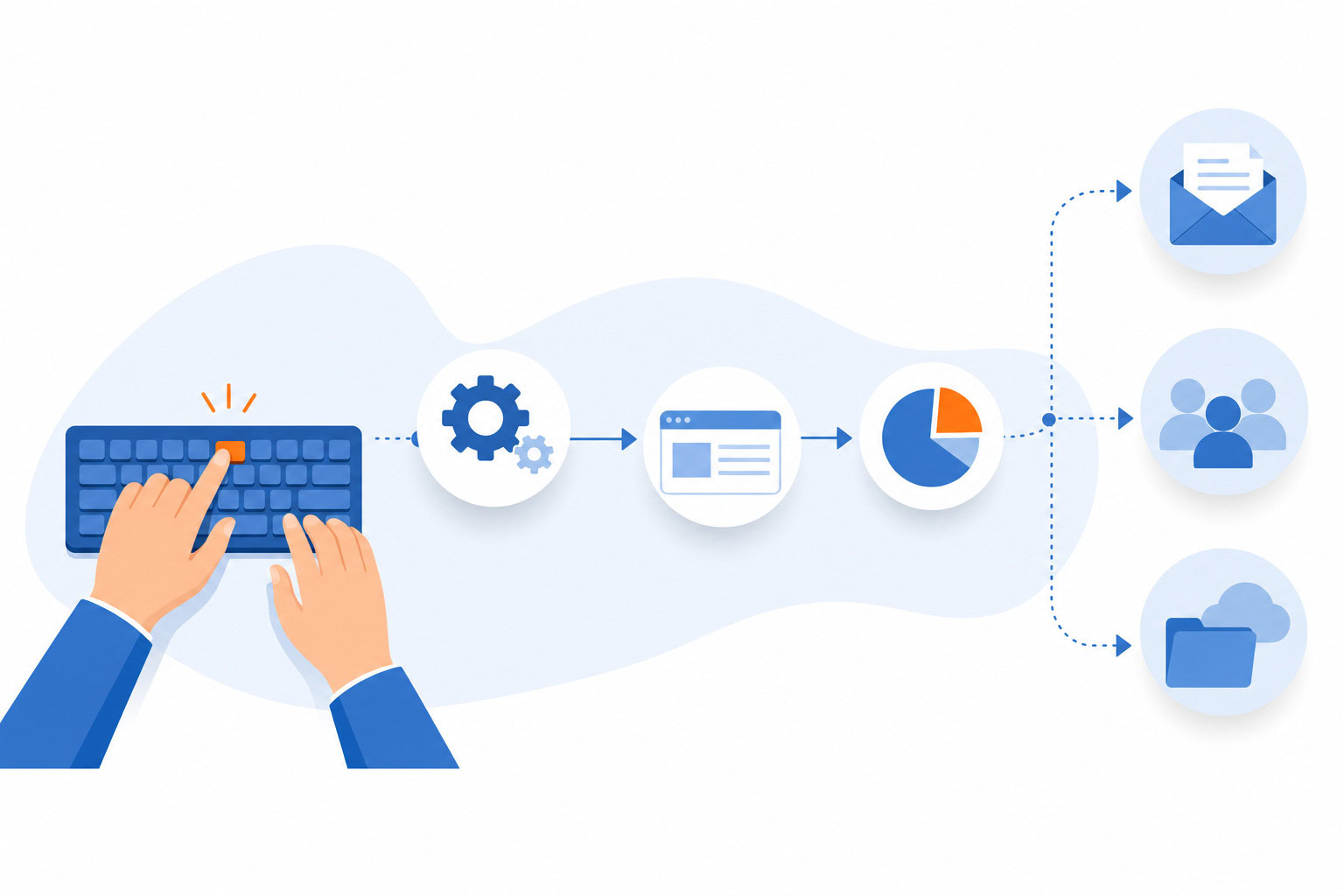
This guide shows you how to build that setup. We will move beyond the basics and turn Raycast into a central hub that handles your admin tasks, triggers AI agents, and keeps your entire stack running from one keyboard shortcut.
Quick Verdict
If you want to stop switching between ten different apps and want a single interface to control your Mac, Raycast is the best tool for the job. The free version is powerful enough to replace your calculator, clipboard manager, and window snapper. The $8/month Pro plan is the real game-changer because it unlocks AI features that let you delegate tasks to agents without leaving your workflow.
Who Should Use This Setup?]\
| You should set up Raycast this way if… | You should skip this setup if… |
| You spend most of your day on a Mac | You primarily use Windows or Linux |
| You hate opening multiple apps for simple tasks | You prefer a traditional menu-driven workflow |
| You want to automate repetitive admin work | You are not interested in AI agents or automation |
| You want to reduce context switching | You are okay with high cognitive load from tabs |
Step 1: The Foundation
Start by downloading Raycast from the official site. The installation is simple. Once it is running, go to Settings and toggle on the “Pro” features if you have a subscription. If you are not ready to pay yet, stick with the free version. It still handles the heavy lifting for file search and window management.
The goal here is to replace the default macOS launcher. Make Raycast your default for search. This small change forces you to use the command palette for everything. It builds the muscle memory you need for the rest of the setup.
Step 2: The Core Stack
Before we get to the fancy AI stuff, we need the basics. These extensions are non-negotiable for a fluid experience.
Clipboard History
You will copy and paste things all day. Without history, you lose the second thing you copied. Raycast saves everything. You can search through hours of copied text. I use this constantly to grab code snippets or links I copied an hour ago but forgot to save.
Window Management
Stop dragging windows manually. Use the window snapping shortcuts to tile your screen in seconds. It is faster than any third-party tiling tool and feels native to the system.
File Search
The built-in file search is deep. It finds files inside folders without you needing to navigate to them. I search for documents by name and open them instantly. It cuts down the time I spend digging through Finder.
Step 3: The AI Agent Integration
This is where the $8/month Pro plan pays for itself. The free version is great for speed. The Pro version is great for delegation.
I built a digital chief of staff agent that manages my emails, calendar, tasks, and delivers daily briefings. It saves me 10 to 15 hours weekly on routine work. Raycast is the interface for this agent. I do not open a chat window in a browser. I hit the shortcut, type my request, and the agent handles it.
You can set up Raycast to connect to your favorite LLMs like OpenAI or Anthropic. Then you can create custom commands. For example, I have a command that summarizes my open tabs in the browser. Another one generates a quick draft for an email based on a few keywords.
One client of mine was juggling ChatGPT, Grok, and Gemini in separate tabs all day, pasting the same idea into each. I flipped the approach with a launcher-first workflow so one hotkey fans a prompt out and brings the answers back to him.
The transformation was about shifting from “let me do this” to “let me build a system that does this for me.”
Step 4: Workflow Automation
Raycast connects to your external tools. You can link it to Notion, Jira, Slack, and more.
I introduced a client to a workflow where an AI agent automatically tests app functionality, finds bugs, and generates reports based on a defined definition of done. It transformed a manual process into a delegated task. Raycast triggered the agent, and the agent did the work.
You can set up commands to create tasks in Notion directly from your clipboard. You can post updates to Slack channels without opening the app. You can search your Jira tickets by typing a command.
This is not about replacing those apps. It is about making them accessible without the friction of opening them.
Step 5: The App Replacement Strategy
The most powerful part of this setup is realizing you do not need five other apps. Raycast extensions can replace them entirely.
Image Modification
I used to open a photo editor to resize an image or convert a PNG to JPEG. Now I use the Raycast image modification extension. I select the file, choose the action, and it is done. It is faster than launching Photoshop or an online converter.
Timers
I have a Pomodoro timer installed in Raycast. I do not need a separate timer app. I start it with a shortcut, and it runs in the background.
Speedtest
Need to check your internet speed? There is an extension for that. No need to open a browser and go to a speedtest site.
Emoji Picker
The built-in emoji picker is fast and searchable. It beats the default macOS emoji viewer every time.
By using these extensions, you reduce the number of apps on your Mac. You reduce the number of icons on your dock. You reduce the mental clutter.
Step 6: Customization
Build a personal command palette for your specific role. If you are a developer, add code snippets and git commands. If you are a writer, add text templates and grammar checkers.
I built an agent named Teddy specifically to tackle action items from my backlog. When I mentioned needing to find padel clubs, Teddy handled all the research. It left me only to make the call and book the court. That is the power of having an agent designed to handle your backlog. It frees you from the grunt work so you can focus on the decisions that only you can make.
You can create custom commands for anything you do repeatedly. The more you customize, the more Raycast feels like it was built for you.
Pricing Comparison
| Feature | Raycast Free | Raycast Pro |
| Cost | $0 | $8/month or $96/year |
| Core Launcher | Yes | Yes |
| Clipboard History | Yes | Yes |
| Window Management | Yes | Yes |
| Extensions | Yes | Yes |
| AI Features | No | Yes (Summarization, Chat, Agents) |
| Cloud Sync | No | Yes |
| Custom Themes | No | Yes |
| API Access | No | Yes |
The free version is generous. It covers all the basics. The Pro plan is where the real value lies for power users. The AI features alone justify the cost if you are saving even a few hours a week.
Side-by-Side: Raycast vs. Spotlight
| Feature | Raycast | macOS Spotlight |
| Speed | Instant | Slower |
| Customization | High (Extensions) | Low |
| AI Integration | Yes (Pro) | No |
| Clipboard History | Yes (Built-in) | No |
| Window Snapping | Yes (Built-in) | No |
| File Search Depth | Deep | Surface level |
| Extensions | Thousands | None |
| Learning Curve | Low to Medium | None |
Spotlight is fine for casual users. It is built into the system and requires no setup. But it cannot compete with Raycast for power users who want to control their entire workflow from the keyboard.
My Recommendation
If you are a Mac user who wants to be more efficient, start with the free version of Raycast. Set up the core stack. Use the clipboard and window management features for a week. You will feel the difference immediately.
If you are ready to take it further, upgrade to Pro. The $8/month is a small price to pay for the ability to run AI agents and automate your daily tasks. It turns your Mac into a true productivity hub.
FAQ
Is Raycast safe to use?
Yes. Raycast is privacy-focused. Your inputs for AI features are not recorded or used for training. Your data stays on your machine unless you enable cloud sync.
Can I use Raycast on iOS?
Raycast is primarily a macOS tool. There is limited functionality on iOS compared to the desktop version. It is not a full replacement for the Mac experience on an iPhone.
Do I need to know how to code to use Raycast?
No. The basic features and extensions work without any coding knowledge. You can create custom commands using the built-in interface. Coding is only needed if you want to build your own extensions.
What happens if I uninstall Raycast?
Uninstalling removes the app and its settings. Some users have reported confusion with the uninstall behavior. Make sure to back up your settings if you plan to reinstall later.
Next Steps
Ready to build your productivity hub?
Want a quick checklist of the top 10 extensions I recommend?
If you want to go deeper into building your own AI agents, check out my workshop on AI fluency. We cover how to build systems that work for you instead of you working for the system.
Recommended for you
Want the full system? 25X is the flagship productivity system we teach.
Explore 25X →