Quick Verdict: If you want to replace typing on your Mac, start with Wispr Flow. It handles context-aware formatting better than the competition and feels like a natural extension of your keyboard. If you need offline privacy above all else, look at Superwhisper. For quick notes, Apple Dictation is fine but not a full replacement for deep work.
Summary: Which Tool Should You Pick?
| If you need… | Pick this tool | Why |
|---|---|---|
| Speed and context awareness | Wispr Flow | It formats text based on where you are (Slack, email, code) and feels the most natural. |
| Total privacy and offline use | Superwhisper | It runs locally on your Mac with no cloud dependency, though it requires more manual editing. |
| Free, basic dictation | Apple Dictation | It is built-in and free, but lacks the advanced formatting and speed needed for replacing typing entirely. |
The Typing Trap
Most of us type because we have always typed. We sit down, fingers ready, and start composing. But there is a hidden cost. When you type, your brain is editing as you go. You pause to find the right word. You delete a sentence because it sounds clunky. You are filtering your thoughts before they even hit the page.
This editing happens in real time. It slows you down. More importantly, it changes the quality of what you think.
I realized this while working through a complex prompt for a client project. I was typing out the instructions, stopping every few lines to refine the wording. It felt heavy. Then I switched to dictating. I just spoke the raw thoughts. The output was faster, sure, but it was also more honest. The AI picked up on that unfiltered thinking and gave me better results.
The medium changes the thinking. Voice unlocks a different quality of thought than typing does.
The Voice Advantage
Think of your mind as a muscle. It has a limit for focus and energy each day. When you type, you are engaging that muscle in two ways at once: generating ideas and editing them. That is double the load.
When you dictate, you remove the editing friction. You are just thinking out loud. This is huge for getting into a flow state.
I remember a story about a writer friend who booked a hotel room for a week just to write his book. He wanted a quiet space, no distractions. The environment mattered. But the tool mattered too. If he had been typing, he would have been fighting the friction of the keyboard. By speaking his ideas, he bypassed the self-editing loop.
This is what AI dictation does for you. It turns your Mac into a thinking accelerator. You are not just writing faster. You are thinking clearer.
Tool Breakdown: Wispr Flow vs. Superwhisper vs. Apple
Let’s look at the three main options for replacing typing on a Mac.
Wispr Flow
Wispr Flow is the tool I recommend most for people trying to ditch the keyboard. It acts like a smart layer over your text fields.
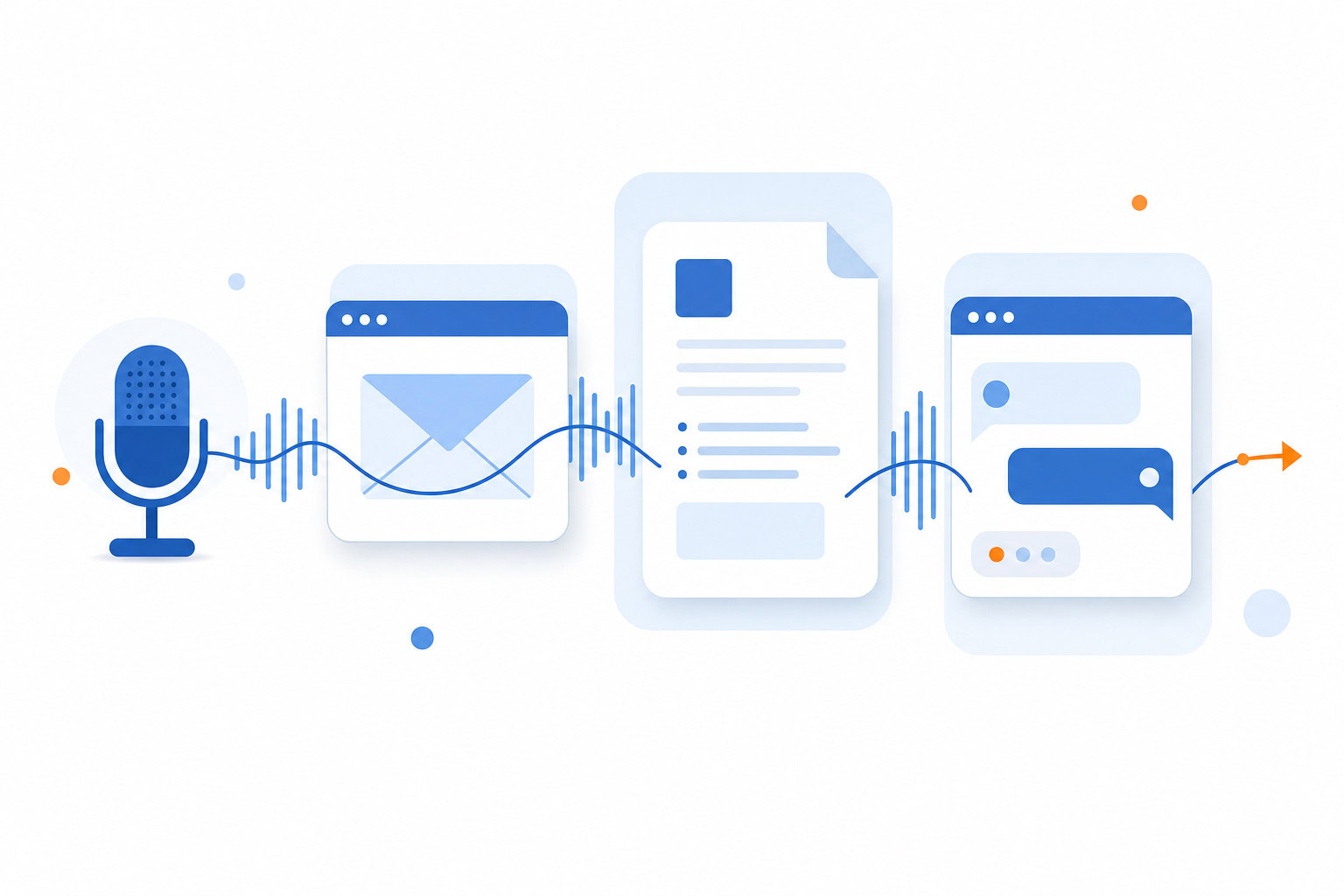
What it does: It listens to your voice and types out text with context-aware formatting. If you are in Slack, it formats for Slack. If you are in an email client, it formats for email. It even handles code editors if you need to speak code comments.
Pricing: Free (Basic plan, 2,000 words per week). Pro is $15/month billed monthly, or $144/year (about $12/month effective) billed annually. Teams runs $12/user/month billed monthly or $10/user/month billed annually, with a 3-seat minimum. Enterprise is custom-priced.
What I like:
- Context awareness: It adapts to the app you are using.
- Speed: It is significantly faster than typing for drafting emails or prompts.
- Privacy mode: You can keep transcripts local if you prefer.
What I don’t like:
- Resource usage: Some users report high CPU and RAM usage.
- Setup friction: It can take a little time to configure properly.
- Windows support: It is much more reliable on Mac than on Windows.
Best for: Writers and professionals on Mac who need to generate text rapidly and want the formatting to just work.
Superwhisper
Superwhisper takes a different approach. It is built for privacy and offline use.
What it does: It runs Whisper models locally on your device. No internet is needed for the core functionality. You can choose different AI models for different accuracy needs.
Pricing: There is a free tier with a limited number of words. Beyond that, Superwhisper runs on a paid subscription — the exact current rate isn’t consistent across sources, so confirm the live number on superwhisper.com before you buy rather than trusting a specific dollar figure quoted elsewhere. There is no confirmed lifetime-purchase option; treat any “lifetime access” price you see for a tool like this with skepticism.
What I like:
- Privacy: Everything happens on your Mac. No data leaves your machine.
- Offline capability: You can use it on a plane or in a remote cabin.
- Model choice: You can swap between models to balance speed and accuracy.
What I don’t like:
- Manual cleanup: The transcripts often need more editing for punctuation and flow.
- Complex setup: Getting it running smoothly takes more technical know-how.
- Speed: Larger models can be slower to process than cloud-based tools.
Best for: Users who prioritize data privacy and offline functionality above all else, and who don’t mind editing their transcripts.
Apple Dictation
This is the built-in option. It has been around forever.
What it does: It converts your voice to text in any field that accepts input. It works offline for basic tasks.
Pricing: Free. It comes with macOS.
What I like:
- Convenience: It is already installed. No download needed.
- Integration: It works everywhere in the Apple ecosystem.
- Simplicity: It is easy to turn on and use for short bursts.
What I don’t like:
- Accuracy: It struggles with complex sentences or rapid speech compared to AI tools.
- Features: It lacks context awareness. It does not format for Slack or email automatically.
- Limitations: It cannot handle specialized terminology well without custom vocabulary setup.
Best for: Casual users who need to dictate a quick message or note without installing new software.
Step-by-Step Setup: Configuring Wispr Flow
If you are ready to try Wispr Flow, here is how to get it running on your Mac.
- Download and Install: Go to the Wispr Flow website and download the Mac app. Install it like any other application.
- Grant Permissions: The app will ask for microphone and screen recording permissions. Grant these. Screen recording is what allows it to know which app you are in (Slack, Gmail, etc.).
- Run the 14-Day Trial: Sign up for the Pro trial to unlock the full features. This gives you time to test the context-aware formatting.
- Test in Different Apps: Open Slack, then Gmail, then your notes app. Speak a sentence in each. Notice how the formatting adjusts.
- Adjust Settings: Go into preferences to tweak the microphone sensitivity or enable privacy mode if you prefer local processing.
Once it is set up, try dictating your next email reply. See how the draft looks.
The “One Tweak a Week” Plan
Changing a 20-year habit is hard. You cannot just switch to voice dictation overnight and expect it to feel natural.
I use a strategy I call “One Tweak a Week.” You introduce one small change at a time.
- Week 1: Dictate your morning to-do list instead of typing it.
- Week 2: Dictate one internal email reply.
- Week 3: Dictate a prompt for your AI chatbot.
- Week 4: Dictate a full draft of a blog post or document.
This approach prevents burnout. You build the habit slowly. By the end of a month, you are dictating more than typing.
Advanced Workflow: Context Files
Once you are comfortable with the basics, you can use context files to personalize your output.
Wispr Flow allows you to load specific context files. For example, if you are writing for a specific client, you can load their style guide. The AI will then format your dictation to match that style automatically.
This is a game-changer for professionals. You are not just typing faster. You are working smarter.
Real-World Application
Let’s look at a specific use case.
I used to rely on ChatGPT to draft my emails. I would paste the prompt, wait for the reply, paste it into my email client, and then edit. It was faster than typing from scratch, but it was still a multi-step process.
Now, with Wispr Flow, I dictate most of my emails directly. I read the incoming message, then speak my reply. The draft is usually 90% ready to send. I just do a quick cleanup for clarity.
This streamlined workflow reduces friction. It makes the transition to voice-first productivity feel natural. And the more I use it, the better I get at articulating my thoughts verbally. It becomes second nature.
Troubleshooting: Privacy, Accuracy, and the Learning Curve
You will run into issues. Here is how to handle them.
Privacy Concerns: If you are worried about your voice data going to the cloud, use Superwhisper. It runs entirely locally. Or enable privacy mode in Wispr Flow if available.
Accuracy Issues: If the tool keeps mishearing you, check your microphone. Background noise can throw it off. Try speaking a bit slower and more clearly.
The Learning Curve: It will feel weird at first. You might stutter or repeat yourself. That is normal. Just keep using it. Your brain will adapt.
Next Steps: Moving from AI Assisted to AI Workflows
Once you have mastered dictation, you are ready for the next level.
You can start building full voice workflows. Imagine dictating a meeting summary, having the AI extract action items, and then dictating an email to assign them.
This is where the real power lies. You are not just replacing typing. You are unlocking a new way of working.
Want to try this setup?
Try Wispr Flow free for 14 days
Need help building your first voice workflow?
FAQ
Is AI dictation accurate enough to replace typing?
Yes, for most use cases. Tools like Wispr Flow and Superwhisper are very accurate. You will still need to do some editing, but the draft quality is high enough to make typing obsolete for many tasks.
Does AI dictation work offline?
It depends on the tool. Superwhisper is designed for offline use. Wispr Flow has cloud features but offers privacy modes. Apple Dictation works offline for basic tasks.
How do I get started with AI dictation on Mac?
Download Wispr Flow or Superwhisper. Run the trial or setup. Start by dictating short tasks like to-do lists or emails. Use the “One Tweak a Week” method to build the habit.
Is there a free option for AI dictation on Mac?
Yes. Apple Dictation is free and built-in. Wispr Flow has a free Basic plan (2,000 words/week). Superwhisper has a free tier as well, though the paid versions offer more power.
Recommended for you
Want the full system? 25X is the flagship productivity system we teach.
Explore 25X →