
How productive you are is largely a result of the personal productivity systems that you’ve decided to implement. These systems are both independent and interdependent, so it’s important that you know how they are connected. Being able to eliminate the friction between your personal systems is important if you want to make meaningful progress on your goals. In this post, we’re going to show you how to leverage two of the more critical personal systems by using a task manager and calendar together effectively.
General Philosophy
The overall purpose of your personal productivity system is to help you finish the things you need to get done more efficiently so you have more time for the things that are truly important. The goal of using your task manager and calendar together is to complete things as efficiently as possible. These things that you need to get done are called “tasks.” The goal of your task manager then is to show you the things you need to when you are in a place to actually do them. The calendar can complement and support this by showing you a picture of the hard landscape of your day so you can identify when you can complete them.
Before you can start taking action on these tasks though, you must understand the specific roles each of these tools plays in your workflow. This is vital as when these tools can reveal the appropriate task at the appropriate time/place – but only if you understand how to properly use them together.
A task manager and a calendar serve very specific (and very different) functions:
- Task Manager – shows you the tasks you need to complete in a way that is actionable. Good task managers allow you to filter your tasks by project, context (the tool, place or thing you need to complete the task), due date, or even mental state (i.e. tasks that you need to get done but don’t require a lot of brain power and you can do when you have low-energy). Good task managers allow you to use additional criteria to quickly shift what items actually appear on the list of items for you to do at any given moment.
- Calendar – shows you all the time sensitive things that you absolutely must do at a specific time (i.e. a work meeting or doctor’s appointment). These are not things that you should do, these are things that you must do. They are mission critical. You do not want to clutter your calendar with things that are not absolutely essential as this will just make you distrust your calendar. When you see something on your calendar, you should know that “I absolutely have to do this thing at this time, no matter what.”
This means that while some tasks will show up on your calendar, not all of them will. They shouldn’t automatically appear there. While it is true that everything you need to get done must be done within the context of time, that doesn’t mean you should load up your calendar with tasks every day.
What about the task manager? What do I use that for?
Your task manager is an invaluable tool for showing you what you need to be working on when. This could be something as simple as a list written on a napkin, but if use a technology-based tool like OmniFocus you can actually leverage your task manager to display only the tasks that you are able to work on at any given moment. You can filter your tasks by project, by context, or even due date – as long as you entered the appropriate information when you created the task in the first place.
In order to use your task manager effectively, there are a couple things we should define:
- Task – This is a single thing that you must get done. A task is as simple as it can be and cannot be broken down any further (i.e. proofread article)
- Project – This is anything that you must get done that requires multiple steps (i.e. write article, which could be broken down into writing the text, finding the images, proofreading, etc.)
- Single-Action List – This is a “project” that contains individual tasks or items that are unrelated (i.e. a grocery list)
It’s important to have a firm understanding of these core concepts before you start capturing everything you need to do into your task manager. The ability to distinguish when something is actually a project and then break it down into actionable steps is a very important skill, and one that you will use when capturing information.
In order to make sure that the correct information gets into your task manager, you need to make sure you answer a couple of questions when entering your tasks:
- What is it? – Answering this question will determine whether this is actually a task or not. For example, is it something you’ll need later? Then it should probably go into a reference file (like Evernote) instead. Maybe it’s not important anymore and can just be thrown in the trash (a surprising amount of the email you receive actually belongs here). If it really is a task, then we can continue to enter it into our task manager but there are a couple other qualifying questions we’ll need to ask first. You’ll have to dig a little deeper and decide if it’s big enough to be its own project, if it’s part of an already existing project, or if it’s a simple task that can be added to a single-item list.
- Should I be doing this? – Assuming this is a task, the next step should be to determine if the task is really worth doing and confirming that we really are the right person to do the task. Many times we take on things we shouldn’t be doing because we like to feel important. You need to be honest with yourself, and if someone else should really be doing this task then don’t sign for the package.
- When do I need to do this? – Just throwing tasks into your task manager won’t help you actually get things done. You have to decide when you want to do this task, and then you have to decide if there really is a hard due date (these are NOT the same thing). You want to avoid arbitrary due dates because it can be paralyzing to see a bunch of overdue tasks that really aren’t overdue when you open up your task manager. The term for this is “task overwhelm” and these false positives causes you to not trust your system. What you should do instead is use defer dates or start dates whenever possible. These allow you to see when a task is available to be worked on but doesn’t scream at you when an arbitrary due date passes. For example, I might want to start planning the family road trip we’ve been talking about but there isn’t a specific date that I absolutely must do this by. In this case, I’d use a defer date but not a due date.
- What do I need in order to do this? – According to the GTD workflow, this is the context. It’s the tool, place or person you need in order to actually get the thing done. For example, if you have to call someone, you might use “Phone” as a context. This may seem really simple, but it’s important to identify this when you are processing your email as it will save you a lot of time trying to figure it out later. Any potential friction you can eliminate when it’s time to actually do the task increases the chances that you will follow through and do it.
The key to managing your task manager together with your calendar is to review it at least once a week to make sure everything that should be on your calendar is there. That’s the time to go through your projects and see which tasks need attention, which can be deleted, and which ones get promoted to the calendar. Maintaining your task manager is very important because you will rely on this information when planning your days and weeks on your calendar.
In general, you’ll use your task manager to plan the work that you want to do but most of these items won’t actually end up on your calendar. We cover this topic extensively inside our private training library the Dojo.
So what should go on my calendar?
There are a three different types of events that should go on your calendar:
- Appointments/Meetings – These are physical places that you must be at a specific time (i.e. a dentist appointment or a meeting at work)
- Time-specific task – These are tasks that absolutely must be done at a specific time (i.e. pick kids up from school)
- Time blocks – These are blocks of time set aside to accomplish important but not urgent tasks (i.e. going to the gym)
The practice of time-blocking (creating blocks of time to a accomplish your important tasks) can be a very effective way to consistently take action on the important tasks that tend to fall through the cracks when you get busy. I personally use the practice of time-blocking to set plan out every hour of my entire week:
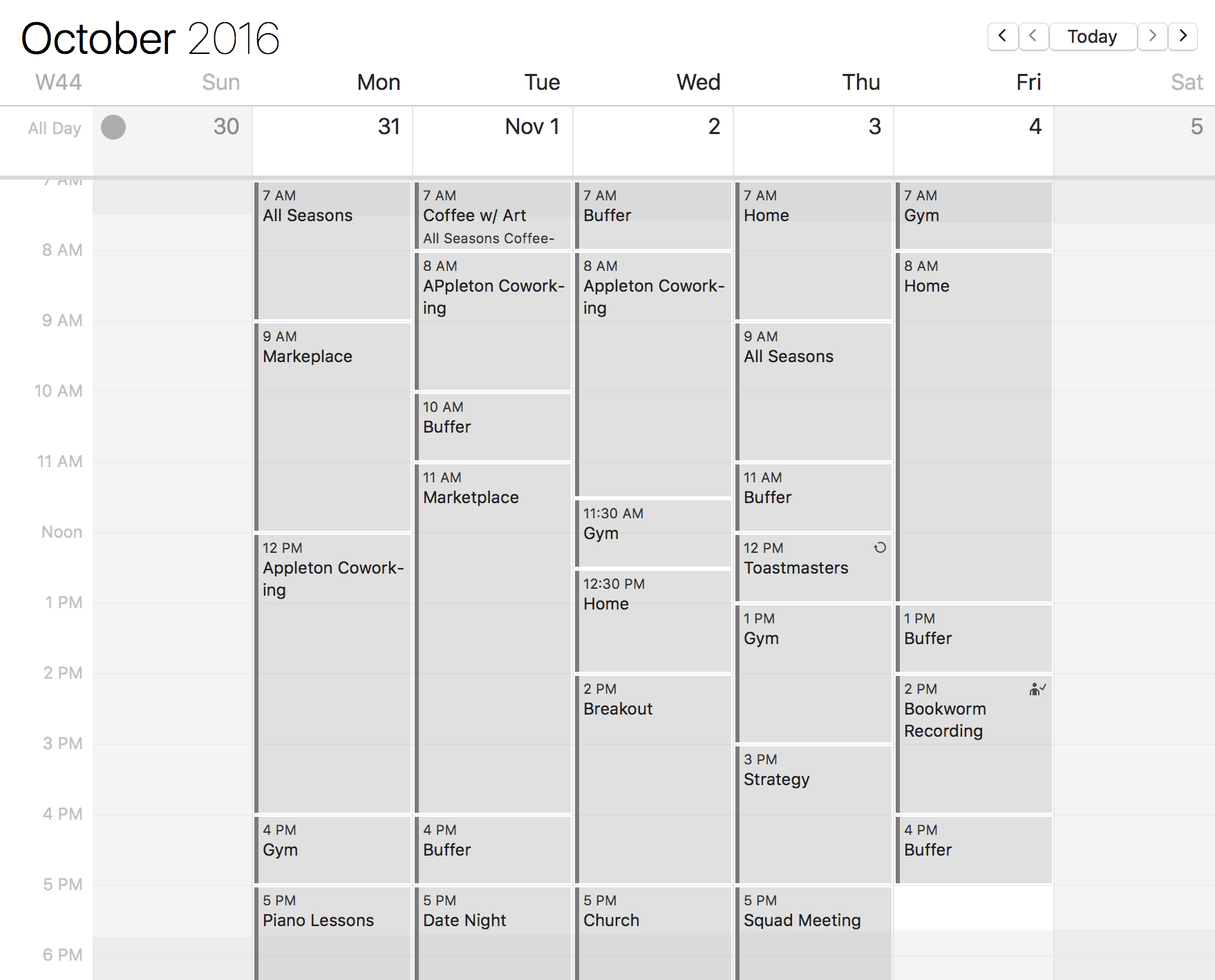
You don’t have to plan out your entire week if you don’t want to, but I find it helpful to have a “Canvas” calendar where I know where I’m supposed to be and what I’m supposed to be doing from a high-level perspective. Ever hear the phrase, “time is money?” This is the approach I take to managing my calendar. The principle here is that your calendar is much like your finances, and just like every dollar needs a job so does every hour of your day. That doesn’t mean that I’m working from sun up to sun down, but it means I’ve divided my day in such a way that I’ve created the space to get the things done that are really important.
What makes time-blocking so effective is that while your calendar may look really full, in practice what you’ll find (at least in my experience) is that you actually have more free time. Frequently, I’ll set aside 2-3 hours to work on a focused task (like writing this article) and find that because I’m mentally prepared to dive in and work on it I’ll actually finish it sooner than I anticipated. This gives me some additional free time that I can use to either relax for a little bit and recharge before my next time block or get started early on my next task.
One of the most important time blocks you can create is for focus time. Focus time is important because if you don’t make the time for it, it will probably never happen. If you don’t carve out time from your day to focus on your most important work, you will probably get sucked into simply responding to the urgent requests of others. If focus time really is a priority for you, you need to create the space for that activity to happen.
This same principle can apply for other things you want to create space for as well. Maybe in addition to focus time it’s a priority for you to get to the gym every day. If that’s the case, feel free to put that time block on your calendar. By doing this, you minimize the chance that something else will come up during that time period since you’ve already committed to being somewhere. Creating that space for your important activities to happen exponentially increases the chances that you will follow through and actually do them.
Another time block I use is the “Buffer” time block. I use this time to check my email and clean up any maintenance tasks I have lying around. For example, I might use this time to empty my OmniFocus inbox or clean up my Desktop on my computer if it’s messy. There’s always small tasks like this that need to be done, and I’ve found that having a buffer block at the beginning and end of my work day helps me stick to these routine maintenance rituals more regularly.
I also have a three hour “Breakout” block that I adopted from the 12 Week Year. I use this time to recharge and disconnect from work for awhile, which is honestly difficult for me to do. But that just shows me that I need to do it even more, as my brain is always thinking about the next article I could be writing or podcast episode we’re going to record. If I take the time to disconnect though, my ideas are usually better and the quality of what gets produced is even higher.
When it comes to time-specific tasks, you should consider your calendar holy ground. Nothing goes on your calendar unless it’s a must and is time sensitive. You absolutely want to avoid putting tasks on your calendar that have random or arbitrary deadlines. This will fill up your calendar unnecessarily. For example, you want to book a vacation to Maui, but you have no clue yet when you want to do it so you just put it on Tuesday at 7pm. Try to avoid calendar items like this. Instead, put those items in your to-do list and then plan when you want to do them.
Recommended apps
We get asked all the time what apps and services we recommend, so here are some of our favorites for using a calendar and a task manager together:
Task Manager
It seems there’s a new task manager out almost daily. While many of them try new ways of looking at or organizing your tasks, there aren’t many tried and true options that we’d personally recommend. Here are the ones that have earned the AE seal of quality:
- OmniFocus – this the gold standard for individual task management in our opinion. OmniFocus offers features that other task managers lack (like defer dates) and is a great option if you’re heavily invested in the Apple ecosystem. We particularly like the ability to create your own custom perspectives in the Pro version, and I rely on these every single day to get my work done. And with apps for Mac, iOS and Apple Watch, you are never far from being able to quickly see what tasks you have available at any given time. The only negatives are that OmniFocus is fairly expensive and it’s not designed to collaboration so if you want to manage team tasks you’ll need to use another tool. Need help setting it up? We have a best-selling course for that.
- Todoist – this is another fully-featured task manager, but because it’s web-based it’s available on pretty much any computing platform. Todoist doesn’t offer the same level of personalization that the custom perspectives in OmniFocus do, but the web-based platform offers additional features like IFTTT and Amazon Echo integration. Todoist also has the ability to share tasks with other people, so it could also work for collaborative projects.
- Asana – this is another online task manager with a ton of polish. Asana has a user interface and is another great option for team task management. Asana is also updated consistently with new options and features, like reporting options and a boards layout that closely resembles a customizable kanban board format.
- 2Do – this standalone Mac and iOS app has grown considerably since launch, and has matured into a very solid task management system for those who use Apple products. It shares a lot of the same functionality as OmniFocus, but includes some additional features (like tags) that can actually make it an even better option if your brain works that way. Some of our most hardcore Dojo members rave about it too.
- Trello – this web app is built on the concept of kanban boards and provides a very different way of looking at your tasks from most task managers. You’ll probably either love it or hate it, but it’s a sold application for those who prefer a big picture view of what they have to do.
- Reminders – the built-in Reminders app can also function as a basic to-do list. It lacks the powerful organizational features of some of the other task managers on this list, but also offers system-level integration which makes it incredibly easy to capture things (“hey Siri, remind me write up my thoughts on task managers and calendars”).
Calendar
Calendar apps are a bit more tricky as there are several different kinds of calendar services available (Google, iCloud, Exchange, etc.). Much like email service providers and email clients, what application you use might be limited by what kind of calendaring service you’re using to keep everything in sync.
- BusyCal – this is the OmniFocus of calendaring apps. It’s pretty pricey, but offers features like customization options for the different views (daily, weekly, and monthly) and an info panel that allows you quickly view and edit additional event details. BusyCal also offers Microsoft Exchange support.
- Fantastical – this 2015 Apple Design Award winner which has a powerful natural language parser which allows you to quickly create events and reminders, but isn’t as reliable as BusyCal in our opinion. It looks great and the iOS apps are awesome, but if you were to pick only one calendaring app BusyCal still gets our vote.
- Timepage – this is a newcomer on the iOS platform and is put out by Moleskine (the people who make the paper notebooks), and it is an absolutely beautiful app. Little things like swiping between hand-drawn icons for preferred travel method when setting up the Time to Leave notifications instead of selecting from a list give the app character and personality. Timepage also has an Assistant feature which can be used to send you rain alerts, give you a daily briefing, tell you what’s upcoming, when you need to leave, and even remind you to follow up with people you’ve met with. We have to thank the members in our private forum for this recommendation.
- Calendar – the built-in calendar app also gets the job done when it comes to managing your calendar, and again offers system-level integration that is missing with third-part calendar apps (“hey Siri, schedule a team meeting on Monday at 3pm central time”).
Conclusion
It’s important that you pick your tools carefully so that they help your work, not hinder it with additional options and complexity. In general, stick with simple tools until you reach the point where you need the app you’re using to offer additional features (“I wish my task manager or calendar could do X”) and then upgrade. If you don’t need the additional features, stay away from the additional complexity (and additional friction) that more comes with more complicated tools and apps.
If you’re a Dojo member, we have discounts for a lot of apps that we’ve mentioned here. It’s one of many perks being a Dojo member (on top of the private training library and the productivity community you get access to.)
Recommended for you
Want the full system? 25X is the flagship productivity system we teach.
Explore 25X →
This is a great, great post. I think the article is spot on. I do, however, agree with Joel from Jan 3. GQueues is the ticket for making this work well. I have spend the last few days with trials of all these with various degrees of success. I think GQueues integrates in a simple/native way and I find two-way ingratiation a must. The tool is in harmony with the article in the fact that some tasks are on a task list and some are scheduled on the calendar.
Great post!
I would love to see how you get Gqueues to integrate with Google calendar in the way the article describes. Take this example, for instance:
I have a recurring task for washing the car. The task is scheduled to recur 1 month from the date of completion. After that 1 month, I want the task to appear on my daily list of actionable tasks; however, I don't want it to appear in my calendar because the task does not have a firm deadline.
As it stands right now, I do not see how this can be effectively accomplished in Gqueues. In fact, I don't see how this can be accomplished in any of the recommended task manager and calendar apps. I think Gqueues would need to include the option to specify both a start date and a due date. Start dates would not appear in the calendar, but due dates would. A task with just a start date would appear as actionable in the task manager on or after the start date, but it would not appear in the calendar.
Know this is a pretty old post, but didn’t see any replies. You can actually drag tasks from OminFocus to Busy Cal, but for some reason it creates a parallel task with no title. I’ve asked them and they keep saying they’re going to fix it but haven’t. Pain in the butt, but I just delete the dupe.
You can also drag an email directly into BusyCal also, no dupe…
For me, this doesn’t seem like a very good system unless you have a task manager that integrates well with the calendar. Unless I’ve misunderstood the process described in this article, I’m not interested in entering tasks twice, once in my task manager and then again in my calendar when there are tasks that have dates.
Ideally, the task manager should integrate with the calendar. For me, what would be ideal is that the task manager would enter all dated tasks into the calendar.
There is an app that I was using, GQueues (www.gqueues.com) that does this and it does it well, IMO. However, the features in the product itself are not as polished but it has bi-directional sync – something rare among task managers.
Todoist is going to be implementing bi-directional sync with Google Calendar sometime in the first quarter of 2017.
If you’re a developer of task manager software, you better get on board or you’re going to lose out to those apps that will make something like this possible.
Great article. I block time out in my calendar, for doing tasks related to a particular project or GTD context. It helps a lot.
You mention “Good task managers allow you to use additional criteria to quickly shift what items actually appear on the list of items for you to do at any given moment”. For me, like Giuseppe, that means using MyLifeOrganized on my PC and iOS devices. It gives you the option of using flags, starred items and goals, in addition to contexts and start/due dates, so my system can be as simple or complex as I need. It also allows me to set up hierarchical or flat views, filtered and sorted to my own criteria. All that flexibility means I can keep in context and really focus on the most important items to get done at any particular time.
I am a happy user of MyLifeOrganized (https://www.mylifeorganized.net) , an outline task management tool with a lot of flexibility and supported on PC, iOS, Android.
cheers
Giuse
Another great app is MyLifeOrganized (MLO) that is a robust task manager. Extremely flexible and run an Windows with both iOS and Android mobile platforms. I use it extensively with my calendar to manage both my efforts and my team.
Great article – Id like to send to my coaching clients – but can you edit and upate, taking out the redundent second para? Your stuff is great and I have sent many a client to you.
Id love to see you do a compare review of OF and 2Do. Ive been a longtime OF user thanks to you, but Im feeling restless.
best,
Dave
Done! Feel free to share it.
Yes there is one that lets you drag and drop tasks onto your calendar. It even integrates with Todoist and many others.
I think it’s still pretty new. It’s called Trevor. https://www.trevorai.com/
I have been loving it.
Great article.
I agree that using both is the best way to go. The task manager is the main place to keep your ever-changing To Do list, while your calendar is better for scheduling major tasks.
I personally like Evernote for my To Do list, although there is one downside. It takes me a little time to navigate to the list, which creates a mental barrier to prevent me from doing it more often.
Do you find that some of the task managers you mentioned help resolve that issue since they have just one main function, whereas Evernote turns into a behemoth of documents, to-dos, bookmarks, etc.?
How does the notion of time blocking work with only putting absolute must dos at a certain time on there? Are you treating those time blocks as sacred as a must do appt? Or are you keeping those time blocks on a separate calendar (e.g. time blocks) so that you can view a must do view vs a view that also shows time blocks?
Careful, there’s a duplicate paragraph at the beginning.
Aside that, good stuff. I second the actual definitions for the task manager and the calendar.
Task manager = precise, ACTIONABLE, contextualized items
Calendar = Non-negotiable blocks of time dedicated to things you planned to do. “You do not want to clutter your calendar with things that are not absolutely essential as this will just make you distrust your calendar” → that’s powerful man.
One thing I do on top of what you recommend is leave 15min of “real” buffer time between EACH time block. It’s useful especially when you plan out your whole week like this, as there are always unplanned things or exceptional events occuring that you can’t predict and end up delaying your schedule; leaving 15min spaces between blocks accounts for 95% of them.
@ Thanh
EEK! That’s embarrassing… I think I got confused by the comment dates and I work on Windows so the tools are unfamiliar anyway…
Thanks for setting me straight!
The fundamentals are timeless, so loved it even if I was confused! :-D
You actually read the newest version Mark! ;) Mike updated this post with his newest wisdom.
We’ll refresh it again next year to make this a great go-to resource.
Just came across this great article courtesy of a Twitter re-posting – thanks for the heads-up guys :)
This article sets out a lot of the basic principles around task and time management and does so eloquently. I love the basic definitions and principles.
Mike – would you consider updating it for 2016/17? I suspect your workflow and especially tools have changed since you originally wrote this…
You have referenced the 12 Week Year but Cal Newport’s Deep Work covers a lot of the principles you detail as well. I’ve just written a lengthy synopsis and discussion of Deep Work – https://productivephysician.com/deep-work/ for anyone interested.
Again, Mike, please consider refreshing this as a 2017 edition: I suspect people would get a *lot* out of an update! Cheers! :)
Great article!
I manage my tasks and my employees’ calendars using http://www.10to8.com and it’s perfect for my business. It automatically integrates with Google Calendar, Paypal, MailChimp etc. to make admin easier.
I’d be great if you could update the Outlook training course link in this article as it is broken. Also Remember the Milk now offers an Outlook integration option for paid subscribers.
Thank you.
Nice Read! The 101’s….I hope I remember them hereon :)
“You should consider your calendar holy ground.”–Holy Words if I may say so. We keep on adding things that dont make sense to the calendar. Eventually it becomes a crutch for us and then the calendar itself gives up on us…..
Even GTD wont help if we dont follow the 101′.
I have been using the free calendar tool at https://www.cloudappsportal.com. It syncs to Outlook as well as my iPhone. iCal’s and the calendar here are in parallel. One of the biggest problems I have run into is “putting everything into the calendar”-This ruins everything.
Hey everyone,
Is there an iOS app that lets you drag and drop tasks onto your calendar? Fantastic time management advice (site wide!)
Hi all!
Has anyone here tried “Trello”? It is a free online application that allows you to design your own project management, and also seems to be excellent for collaboration. I was starting to develop my own system with it, until I found GTD and Omnifocus. …
I am the type of person who has realized quite late that my achievements have been made despite my incredibly chaotic organizational and time management skills. I’ve recently been turned on to the book “Getting Things Done” which basically gave me an epiphany. That eventually led me to Omnifocus, which is based on the principles in GTD. Without much thought, that was enough to prompt me to immediately get Omnifocus on my Mac and iphone, and I am liking it so far. The real test, however, will be whether I can USE the system habitually, so that it becomes a “trusted system”.
Hi,
Can you recommend the best calendar app to use along with omnifocus for iphone.
WeekCal.
Is there a way to add OmniFocus due dates to Google Calendar?
Or is this not possible due to OmniFocus due dates (server) requiring a password?
OmniFocus due dates sync up fine with my iPhone and iCal calendars, but I want the OmniFocus due dates to show up when I’m logging into Google Calendars online…
Thanks for any help with this! You guys have been a godsend for getting the most out of OmniFocus! Still a work in progress… :)
is there a way to add events to tasks if I have previously added the event to my calendar?
Tasks in your calendar or in OmniFocus?
If you want to reach areal Asian Efficiency level, you’ve got omnifocus (osx & iOS), Fantastical 2 (iPhone) and Calendars 5 (iPad)
I’ve used Outlook for years and my company just migrated to Google. I miss certain functions of the task list in outlook.
1) I can create recurring tasks.
2) Incomplete tasks always stay visible, highlighted in red.
It seems that I can either have #1 on the calendar or #2 (not highlighted) on the task list. Is there a way to get both features? I’d prefer them on a task list rather than calendar for all of the reasons listed in the article.
Thanks,
Susan
Great artcile Thanh! Can I sync OmniFocus with google calendar/tasks without needing BusyCal? Thanks.
Think of it as using-in-tandem rather than syncing. The task structure in Google Calendar isn’t complex enough to handle the structure in OmniFocus.
You mentioned the calendar being holy, but it seems almost a little bloated, at least to what I’m used to. I usually only put Appointments, Events and Day specific information (as an all day event) on my calendar. Having the deadline there does give you a nice overview of deadlines, but so does forecast in omnifocus. Having the deadline on the calendar actually feels a bit weird since it may not require any action whatsoever from the user, as whatever had a deadline might’ve been completed days ago.
I tried focus time for my university studies, but I really suck at keeping them. As such I dislike putting it on my calendar, but it’s really a question of discipline.
Great article, it’s a great in depth setup of calendar + todo!
Hi Thanh , could you please help me on iPad Omnifocus and iCal. Is that possible to see in iCal a to do planned in Omnifocus ?
Could you tell me how?
And if get the to do in iCal can sync via iCloud ?
Many thanks and best regards.
Hi Joao,
Via iCloud doesn’t work at the moment (due to OmniFocus not supporting it) but you can see OF tasks on iCal. The other way around is not possible – showing iCal to do’s in OmniFocus.
But you can see items of Omnifocus in iCal. Go to Settings of Omnifocus and in the iCal tab you can sync contexts. However, this stopped working in Mountain Lion.
Great article – have you ever tried Nozbe https://www.nozbe.com/ great program!
Hi Daniel, never tried it but I know Michael Sliwinski knows his stuff. I’ll check it out soon.
I just noticed this link to my site. Thanks for linking to that article. I am honestly a little embarrassed at how old the article is.
This is an excellent topic to write about. As I began taking on more responsibility in my work life (and life in general) I had to learn how to properly use my calendar for events and my task list for tasks. Now I work in a team and so I have added a new layer to each: collaboration.
While iCal and Google Calendar both have tasks functionality built-in neither is elegant to me. Ideally I want to be able to easily access and manage my calendar and tasks on my Mac, iPhone, and the web. Google Calendar with BusyCal and a few nice iPhone apps handles the calendar part for me. However, tasks are a different story altogether.
Right now my favorite collaborative tasks manager is Flow (https://getflow.com) although Do (https://do.com), Orchestra (https://orchestra.com), and Doit.im (https://doit.im) are also worth looking at. If collaboration is not necessary I am a fan of Remember the Milk Pro, The Hit List, or Things.
Hey Ben thanks for stopping by and sharing all these nuggets!
“How I use this is worthy of another article.” -> I’d love to hear more about how you use OmniFocus together with BusyCal. I’ve been thinking of setting up a similar system myself and I’d appreciate hearing about your experiences.
Hey Patrick I can tell you it’s been a great experience so far. I don’t use the calendar/Omnifocus integration that much but when I do it’s working well. The article idea has been added to our list and we’ll try to publish it soon.
Is there a benefit to NOT having an automatic import to your calendar? As I’ve thought through this, you want to be VERY sure your calendar stays sacred. If you have some sort of import, you can lose that last moment of “does this really need to be on my calendar?”. I can see the benefit of removing a step, but this may be a time where having that extra bit of friction could be important.
An alternative may be to import the individual events you select… Check out Teamup Calendar when a stand-alone shared calendar for group collaboration makes sense, e.g. team absence/holiday planning. You can import only the items important to you to your personal calendar (Outlook, Google, iCal etc.) without cluttering it with everyone else’s vacation dates.
You forgot goodtodo.com
What’s the purpose of Remember the milk, when you have Google tasks. No matter that they are simple, they are perfectly integrating with Google Calendar. Just my 2 cents.
I agree that Google Tasks is a great resource. It’s very simple and easy to use. And like you mentioned it works great with Google Calendar. I’ll add it to the article too. Thanks for the tip!
The issue with Google Tasks is that you cannot make them visible to your co-workers in a collaborative environment. If anyone knows how to make Tasks (not only events) visible to others, please share the details of how.