\The fastest way to get to inbox zero is to let AI handle the heavy lifting. Start with a cleanup tool, then use AI-drafted replies and a concise decision framework to keep the inbox empty without manual processing.
Quick Verdict
- Clean Email ($30/year) clears the backlog first — nothing else works until the mess is gone.
- SaneBox ($7/month) keeps it from coming back with automatic smart filtering.
- Add Superhuman or Shortwave only if AI-drafted replies are worth the extra cost.
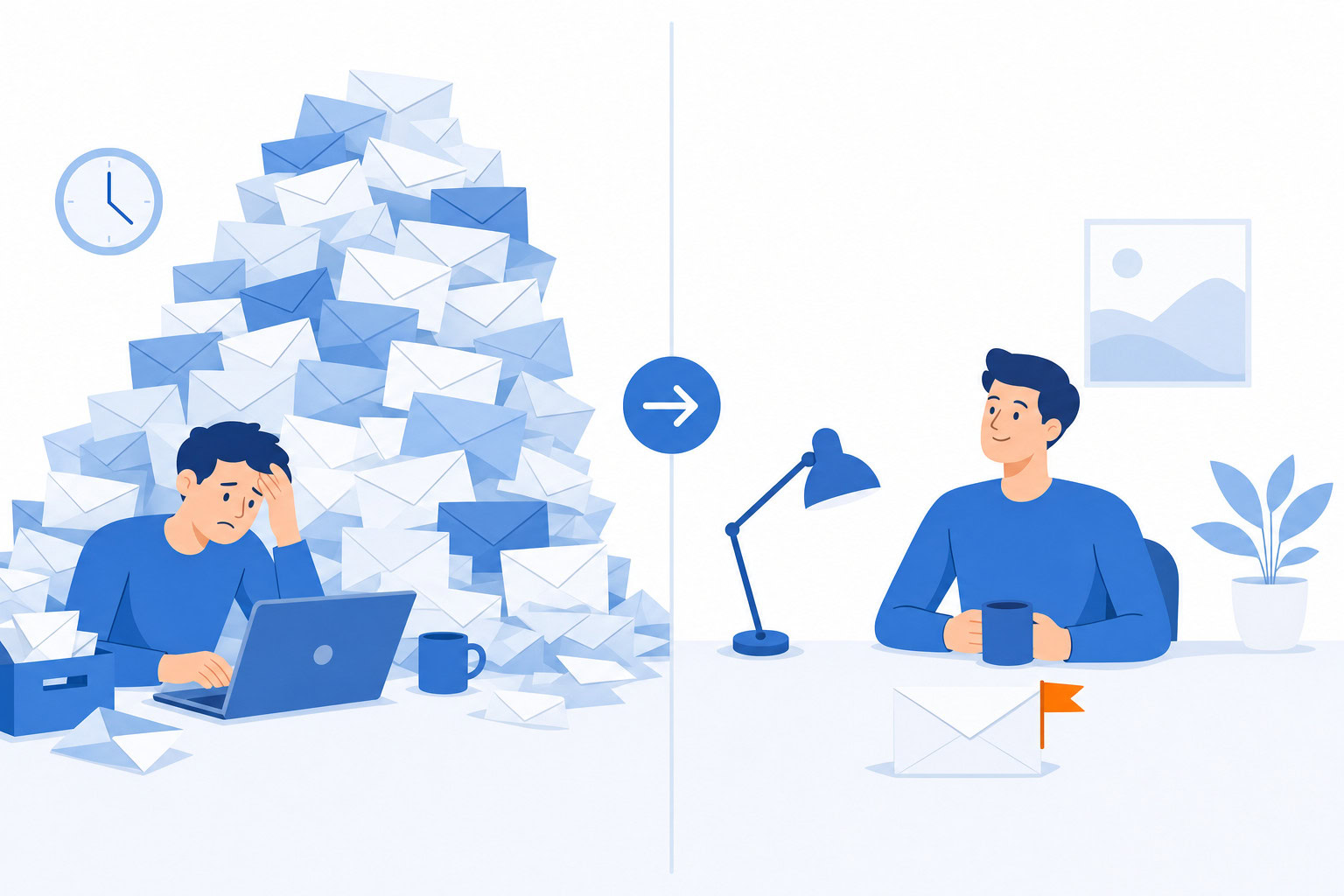
What You’ll Build
| Tool | Cost | Core Role |
|---|---|---|
| Clean Email | $30/year | Initial cleanup, unsubscribe |
| SaneBox | $7/month | Smart filtering, folder automation |
| Superhuman | $30/month | AI‑drafted replies, fastest UI |
| Cleanup + SaneBox | $114/year | Core AI‑ready inbox |
| Full Premium | $474/year | Premium AI‑ready inbox |
How I Evaluated This Setup
I evaluated this guide based on whether the workflow reaches the promised outcome quickly, how much setup it requires, and where people usually overcomplicate the process. The goal is not to make the setup look clever. The goal is to make it usable in real work.
Step 1: The Nuclear Cleanup (Do This First)
If you have 5,000 unread emails right now, no productivity framework is going to help until you clear the backlog. You need a cleanup tool, not a system.
Use Clean Email ($30/year). It groups similar emails together and lets you batch-delete hundreds at once. The True Unsubscriber actually sends unsubscribe requests to senders… not just filtering them, but stopping the emails at the source.
Here’s the 30-minute cleanup process:
- Connect Clean Email to your inbox
- Use Smart Folders to see emails grouped by type (social notifications, marketing, newsletters, finance)
- Bulk-delete anything you haven’t opened in 90 days. If you haven’t read it in three months, you’re never going to.
- Use True Unsubscriber on every newsletter and marketing email you don’t actively read. Even ours. Seriously. If you’re not reading it, unsubscribe.
- Use Screener to quarantine new senders going forward
I had a client where 80% of their emails were system notifications that weren’t being read. Disabling those notifications and unsubscribing from dead newsletters reduced their daily email volume from hundreds to maybe 30-40 that actually mattered. That took 15 minutes of cleanup.
Here’s a quick trick from the podcast: search for “unsubscribe” in your inbox. It’ll pull up most marketing emails. Spend 15 minutes unsubscribing. This one task can save you 15-30 minutes every single day.
Step 2: Stop the Bleeding (Smart Filtering)
After the cleanup, you need something that prevents the mess from coming back. This is where SaneBox comes in.
Use SaneBox ($7/month). It sits on top of your existing email app and sorts incoming messages into smart folders automatically. You don’t change apps. You don’t learn a new interface. SaneBox just works in the background.
The folders that matter:
- SaneLater catches newsletters, notifications, and non-urgent emails. They’re still there if you want them… just not cluttering your main inbox.
- SaneBlackHole is permanent silence. Drag a sender there once, never see them again. No unsubscribe link needed.
- SaneNoReplies shows emails you sent that nobody responded to. This catches the follow-ups that fall through cracks.
- SaneReminders pings you if someone hasn’t replied to your important email within a set time.
SaneBox learns from your behavior. Move an email to SaneLater, and future emails from that sender go there automatically. After a couple weeks, it’s sorting 60-70% of your email before you even see it.
The result: your main inbox only shows emails that actually need your attention. That’s the foundation of inbox zero in 2026… not processing every email yourself, but letting AI handle the sorting so you only see what matters.
Step 3: Process What’s Left (The 4D Framework + AI)
Now your inbox is clean and filtered. What shows up is the real stuff. Here’s how to process it fast.
At Asian Efficiency we teach the 4D framework. Every email gets one action:
Delete it. If it doesn’t need a response and has no future value, archive or delete immediately. Don’t leave it sitting there.
Defer it. If it needs action but not right now, move it to your task manager with a due date. Todoist, Things, Notion… whatever you use. The email leaves your inbox. The task lives where tasks live.
Delegate it. If someone else should handle it, forward it with clear instructions and move on.
Do it. If it takes less than 30 seconds, do it right now. Reply, confirm, approve, whatever. Don’t defer a 15-second task.
The rule: touch each email once. Open it, decide which D it gets, execute, move on. No going back to re-read. No “I’ll deal with this later” while it sits in your inbox.
Where AI helps: If you’re using Superhuman ($30/month), Auto Drafts pre-writes replies for emails that need a response. You open the thread, a draft is already there in your writing style. Review, tweak if needed, send. What used to take 3 minutes takes 30 seconds.
If you’re using Shortwave ($30/seat/month, Business — it repriced upmarket in 2026), Ghostwriter does the same thing. Or just copy the email into Claude or ChatGPT and ask it to draft a reply. The key insight: editing a draft is always faster than writing from scratch. I push this with every client I work with.
Step 4: Build the Maintenance System
Getting to inbox zero once is easy. Staying there is the hard part. You need a system that runs on its own.
Check email in blocks, not all day. I check email twice a day… once mid-morning, once mid-afternoon. Each session takes 15-20 minutes. Outside those blocks, email is closed. No notifications. No badge counts. No “quick check” that turns into 45 minutes.
Set up AI email agents (advanced). I built Lindy agents that pre-draft my emails in my voice. They read incoming messages, figure out what kind of response is needed, and draft it. I review and send. One of my clients, Amanda, set up a Lindy email agent during tax season and saw her inbox volume drop dramatically within days. The agent filtered out informational noise while keeping client-critical emails front and center.
For one executive I work with, we built an AI agent suite that pre-drafts replies, sorts incoming mail, creates briefings before calls, and handles routine responses automatically. His assistant went from spending 25 hours per week on admin to 5. Most of that reduction was email.
Use email templates for common responses. Brooks created snippets for his most common emails. Three characters expand into six paragraphs. He tracked it: 106 hours saved total, and 1,800+ moments of frustration avoided. TextExpander or your email client’s template feature works for this.
Step 5: The Weekly Email Review
Every Sunday during my weekly planning ritual, I spend 5 minutes on email maintenance:
- Check SaneNoReplies for emails I sent that got no response. Follow up or let go.
- Scan SaneLater for anything that got filtered but actually matters.
- Review my SaneBlackHole list… make sure nothing important got banished by accident.
- Process any stragglers that snuck past the system.
This weekly check keeps the system calibrated. Without it, the filters drift and important things start slipping through or getting buried.
What This Costs
| Tool | Cost | What It Does |
|---|---|---|
| Clean Email | $30/year | Initial cleanup + ongoing unsubscribe |
| SaneBox | $7/month | Smart filtering on top of your email app |
| Total (basic) | $114/year | |
| Superhuman (optional) | $30/month | AI drafts + fastest email experience |
| Total (premium) | $474/year |
The basic setup (Clean Email + SaneBox) costs $114 per year. If that saves you 15 minutes per day on email, that’s about 90 hours per year. At any professional hourly rate, the math is obvious.
Common Mistakes
Mistake 1: Treating email as a to-do list. Your inbox is not your task manager. If an email creates a task, move the task to your task manager and archive the email. Otherwise you’ll scroll past the same 30 emails every day wondering which ones still need action.
Mistake 2: Checking email first thing in the morning. Morning is your highest-energy time. Don’t spend it in reactive mode processing other people’s requests. Do your deep work first, check email later.
Mistake 3: Keeping email open all day. Every notification pulls you out of whatever you’re doing. Close it. Check in blocks. The world will not end if you reply two hours later.
Mistake 4: Trying to process everything manually. That’s the 2004 approach. In 2026, let AI filter, sort, and draft. Your job is review and decision-making, not typing.
FAQ
How long does it take to reach inbox zero from a messy inbox?
The nuclear cleanup (Step 1) takes about 30 minutes. Setting up SaneBox (Step 2) takes 10 minutes. Processing what’s left (Step 3) depends on how many real emails you have, but usually 30-60 minutes for the initial clear-out. After that, 15-20 minutes per day maintains it.
Do I need to use a special email client?
No. SaneBox works with whatever email app you already use. Clean Email works with any provider. You can do inbox zero with Gmail’s default interface. A premium client like Superhuman or Shortwave makes it faster, but it’s not required.
What about email on my phone?
Turn off email notifications on your phone. Seriously. Check email during your scheduled blocks on your computer. If something is truly urgent, people will text or call, not email.
What if I get 200+ emails a day?
That’s exactly who needs this system the most. After SaneBox filtering and newsletter cleanup, those 200 emails typically drop to 30-50 that need your attention. The 4D framework processes those in 20 minutes.
Next Step
Recommended for you
Want the full system? 25X is the flagship productivity system we teach.
Explore 25X →