Last updated: 2026-07-06
If you want a Notion second brain that actually gets used, keep it simple at the start. Build four databases first — Inbox, Projects, Areas, and Resources — then add a dashboard and a weekly review habit so the system stays useful instead of turning into digital clutter. Once that basic structure is working, you can layer in Notion AI, context files, and automations.
Quick Verdict
- Best setup for most people: four core databases plus one home dashboard
- Best way to avoid overbuilding: start simple and add complexity only after real use
- What matters most: capture friction stays low and your inbox gets processed weekly
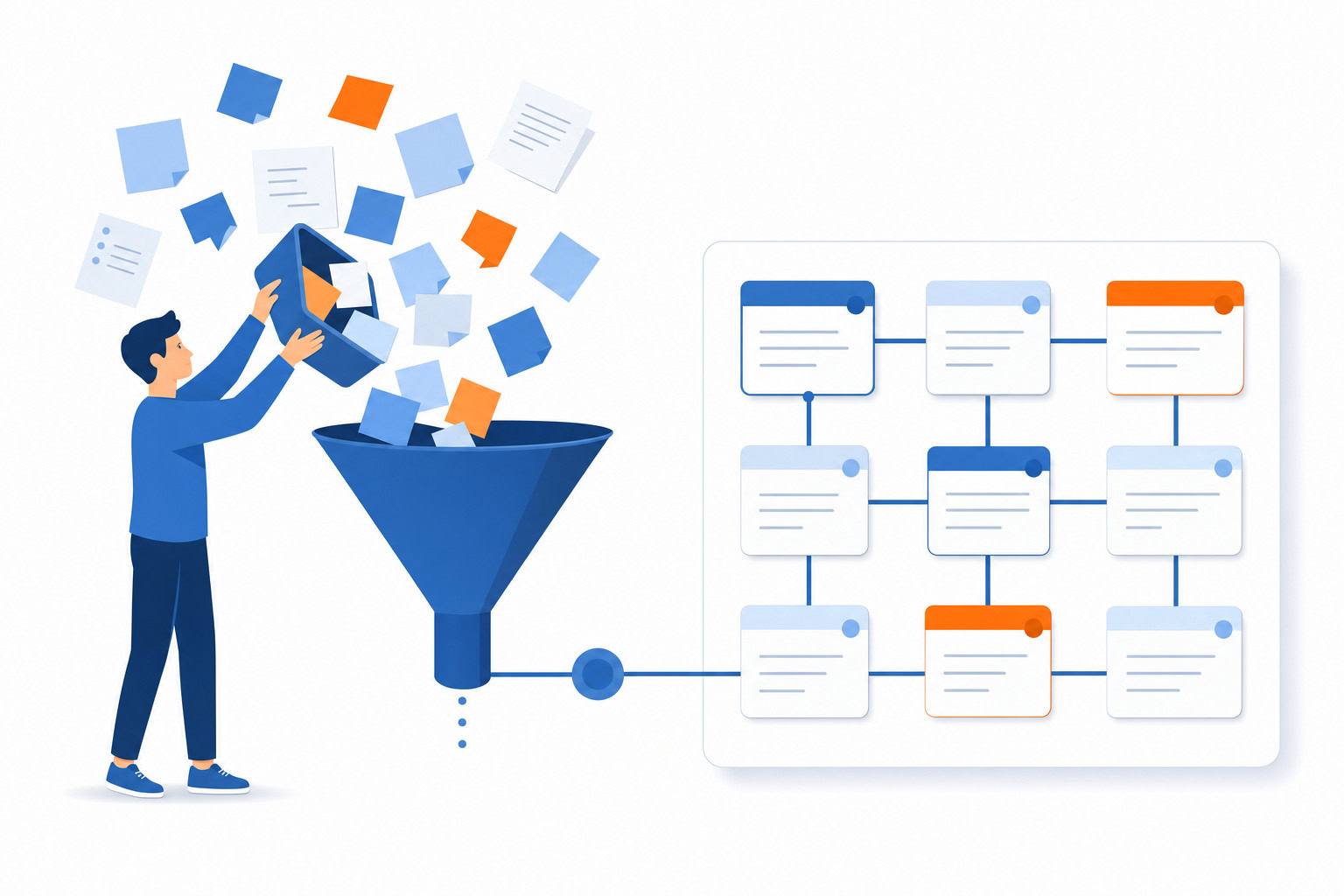
What You’ll Build
| Part of the system | Why it matters | Keep it simple by… |
|---|---|---|
| Inbox | Catches ideas before they disappear | Using as few fields as possible |
| Projects | Tracks active work with an end point | Keeping only active or near-active projects visible |
| Areas | Holds ongoing responsibilities | Limiting yourself to 5-8 real life areas |
| Resources | Stores reusable reference material | Saving only what you will realistically use again |
| Dashboard | Gives you one place to review the system | Showing only the views you check regularly |
How I Evaluated This Setup
I’ve built versions of this for myself and for clients, and the biggest mistake is always the same: people try to build the perfect knowledge system before they build a usable one. So I judge a second-brain setup by three things: how fast it is to capture something, how easy it is to find later, and how little maintenance it creates once the novelty wears off.
The structure below is intentionally boring in a good way. It is strong enough to run real work, but simple enough that you will still be using it a month from now.
What You’ll Need
- A free Notion account (the free tier is enough to start)
- About 45 minutes for the initial setup
- Some ideas about what you actually want to capture (we’ll figure this out in Step 1)
That’s it. No templates to buy. No courses to finish first. Just Notion and some focus.
Step 1: Create Your Four Core Databases (15 minutes)
Your second brain needs four databases. Not three, not seven. Four. Each one holds a different type of information.
Database 1: Inbox
This is where everything lands first. Random thoughts, article links, meeting notes, voice memos, ideas at 2am. Don’t organize here. Just capture.
Create a new database in Notion. Name it “Inbox.” Add these properties:
- Title (default)
- Type (select: idea, article, meeting note, task, reference)
- Date Added (date, auto-filled)
That’s it. Keep the Inbox dead simple. Its only job is catching things before they disappear.
Database 2: Projects
Active things you’re working on. Each project gets its own entry with related notes, tasks, and resources linked to it.
Create a new database. Name it “Projects.” Properties:
- Title (default)
- Status (select: active, on hold, completed, archived)
- Area (select: work, personal, business, learning)
- Target Date (date)
Database 3: Areas
Ongoing responsibilities that don’t have an end date. Health. Finances. Your business. Relationships. These are the categories your life falls into.
Create a new database. Name it “Areas.” Properties:
- Title (default)
- Description (text: one line explaining what this area covers)
Start with 5-8 areas. Mine include: AI Consulting, Asian Efficiency, Health, Finance, Relationships, Events, Learning. Don’t overthink this. You can always add more later.
Database 4: Resources
Reference material you want to keep long-term. Book notes. How-to guides. Templates. Recipes. Anything you’ll want to find again someday.
Create a new database. Name it “Resources.” Properties:
- Title (default)
- Type (select: book notes, article, template, reference, how-to)
- Area (relation: linked to your Areas database)
- Tags (multi-select)
Step 2: Build Your Dashboard (10 minutes)
Create a new page called “Second Brain” or “Home” or whatever feels right. This is your command center.
On this page, add linked views of each database:
- Inbox — filtered to show only unprocessed items. Gallery or list view works best.
- Active Projects — filtered to Status = Active. Board view grouped by Area looks clean.
- Areas — simple list view. You won’t look at this often, but it’s useful for the weekly review.
- Recent Resources — sorted by date added, showing the last 10 items.
The dashboard should show you everything that matters in one glance. When you open Notion, this is the first thing you see.
Step 3: Set Up Your Capture Flow (5 minutes)
The best second brain is useless if capturing is hard. Make it frictionless.
On your phone: Add the Notion app and set up the “Quick Add” widget. One tap to capture an idea to your Inbox.
On your computer: Use Notion Web Clipper (browser extension) to save articles directly to your Resources database.
From email: Forward interesting emails to your Notion inbox. Notion supports email-to-page now… set up a forwarding address in your workspace settings.
The rule: If something takes more than 5 seconds to capture, you won’t do it consistently. Every capture path should be fast and thoughtless.
I set up a system for a client where their brain dump ideas automatically feed into a structured Notion database. They’d been trying to use their old system for months and never did. Once the friction disappeared, they used it every day. The system didn’t change. The friction did.
Step 4: Process Your Inbox Weekly (Ongoing)
Here’s where most second brain attempts die. People capture but never process. The inbox fills up and becomes another source of stress.
The fix: schedule 15 minutes every Sunday to empty your inbox. For each item:
- Is it actionable? Move it to the relevant Project.
- Is it reference material? Move it to Resources and tag it.
- Is it irrelevant now? Delete it. Don’t archive junk.
- Is it connected to an Area? Link it.
This is a simplified version of what I call the weekly review. The full version includes reviewing your calendar, checking goals, and planning the next week. But even this 15-minute inbox clearing makes a massive difference.
Pro tip: archive completed projects regularly. If you use a task manager or notes app, you probably have projects you’re not actively working on cluttering your sidebar. That’s digital clutter. Get things out of sight, out of mind. When something isn’t in your direct view, it doesn’t enter your consciousness.
Step 5: Connect Notion AI (5 minutes)
If you’re on Notion’s Business plan ($20/month), AI is included. If you’re on the free or Plus plan, you get limited AI access.
Here’s what Notion AI adds to your second brain:
AI Search: Ask questions about your notes in natural language. “What did I learn about pricing strategy?” and it pulls from everything you’ve captured.
AI Summaries: Highlight a long article or meeting notes and get a summary in seconds.
AI Writing: Start a draft from your captured ideas. The AI pulls context from your second brain to make the output more relevant.
AI Agents (new in 2026): Custom agents that can analyze your workspace, surface patterns, and even take actions based on rules you set.
The AI layer is what turns a note collection into an actual second brain. You’re not just storing information… you’re making it searchable, connectable, and useful in ways that weren’t possible two years ago.
Step 6: Add Your Context Files (Optional but Powerful)
This is the advanced move that most people skip. It’s also where the real leverage lives.
Create a folder in Notion called “Context” and add pages for:
- Who I am (your role, goals, values, current priorities)
- How I work (your preferred schedule, energy patterns, communication style)
- What I’m working on (active projects, deadlines, key relationships)
My context file system powers 40-50 AI agents that reference this information constantly. But even if you never build an agent, having these context pages makes Notion AI dramatically more useful. When you ask it questions, it draws from this context to give you answers that actually fit your situation.
Common Mistakes to Avoid
Over-engineering from day one. Start with the four databases and a dashboard. Don’t add 15 properties, 8 views, and 3 automations before you’ve captured a single note. Build the system as you need it, not before.
Too many Areas. If you have 20 areas, you have zero areas. Keep it to 5-8. If something doesn’t fit, it might be a project, not an area.
Never processing the Inbox. Capture without processing is just organized hoarding. The 15-minute Sunday review is the habit that makes everything else work.
Treating your second brain like a library. It’s not a place to store everything you’ll “maybe need someday.” It’s a tool for the work you’re actually doing. Be ruthless about what goes in and what gets deleted.
Spending more time on the system than on the work. If you’re spending an hour a week maintaining your second brain, something is wrong. It should save you time, not cost you time. After the initial setup, maintenance is 15-20 minutes a week.
Pro Tips from My Setup
Use relations between databases. Link Projects to Areas. Link Resources to Areas. Link Inbox items to Projects when you process them. These connections are what make Notion’s second brain more powerful than folders in a file system.
Create a “Waiting For” view. In your Projects database, add a Status option called “Waiting For” for things you’ve delegated or are waiting on someone else. Review these during your weekly review.
Archive, don’t delete. When a project is done, change its status to “Archived” instead of deleting it. You might need the notes later. Archiving gets it out of your view without losing the information.
Make your dashboard your Notion home page. In Notion Settings, set your Second Brain dashboard as your default page. Every time you open Notion, you see your system.
Next Steps
Once your basic second brain is running for a couple weeks:
- Add a weekly review routine. Expand beyond just clearing your inbox. Review your calendar, check your goals, plan the week ahead. This is AE’s signature framework, and it’s the habit that makes your second brain compound over time.
- Connect other tools. Use Zapier to pipe information from other apps into your Notion inbox automatically. Meeting notes from Granola. Bookmarks from your browser. Highlights from Kindle.
- Explore Notion AI agents. Once you have enough content in your second brain, the AI features become genuinely useful. Start with AI search and work your way up to custom agents.
Not sure if Notion is the right tool for you? Check out my comparison of the best second brain apps to see how it stacks up against Obsidian, Mem, and others.
FAQ
Can I build this on the free tier?
Yes. Everything in Steps 1-4 works on Notion’s free plan. You’ll miss out on Notion AI and some advanced features, but the core second brain structure is fully functional for free.
How long before it feels useful?
Give it two weeks. The first few days feel like extra work because you’re building the habit. By week two, you’ll start finding things you captured earlier and realize the system is working. By month two, you won’t remember how you worked without it.
What if I already have notes scattered everywhere?
Don’t try to migrate everything at once. Start fresh with the four databases and use them for new information. When you naturally need an old note, bring it into the system then. Gradual migration beats a giant import that burns you out.
Do I need the paid plan?
The free plan works for a personal second brain. Upgrade to Plus ($10/month) when you hit the file upload limit or want 30-day page history. Upgrade to Business ($20/month) when you want Notion AI or need team features.
Recommended for you
Want the full system? 25X is the flagship productivity system we teach.
Explore 25X →