Last updated: 2026-07-06
If you want the short answer, start with the meeting note tool that fits your environment: Granola for external or sensitive virtual calls, Otter for internal team meetings, and Plaud for in-person capture. Then connect the notes to your task manager or follow-up workflow so action items actually leave the transcript and turn into next steps.
Quick Verdict
- Start with the simplest version of the workflow first.
- Make the result clear before you add extra setup or automation.
- Use the steps and FAQ below to avoid the common mistakes.
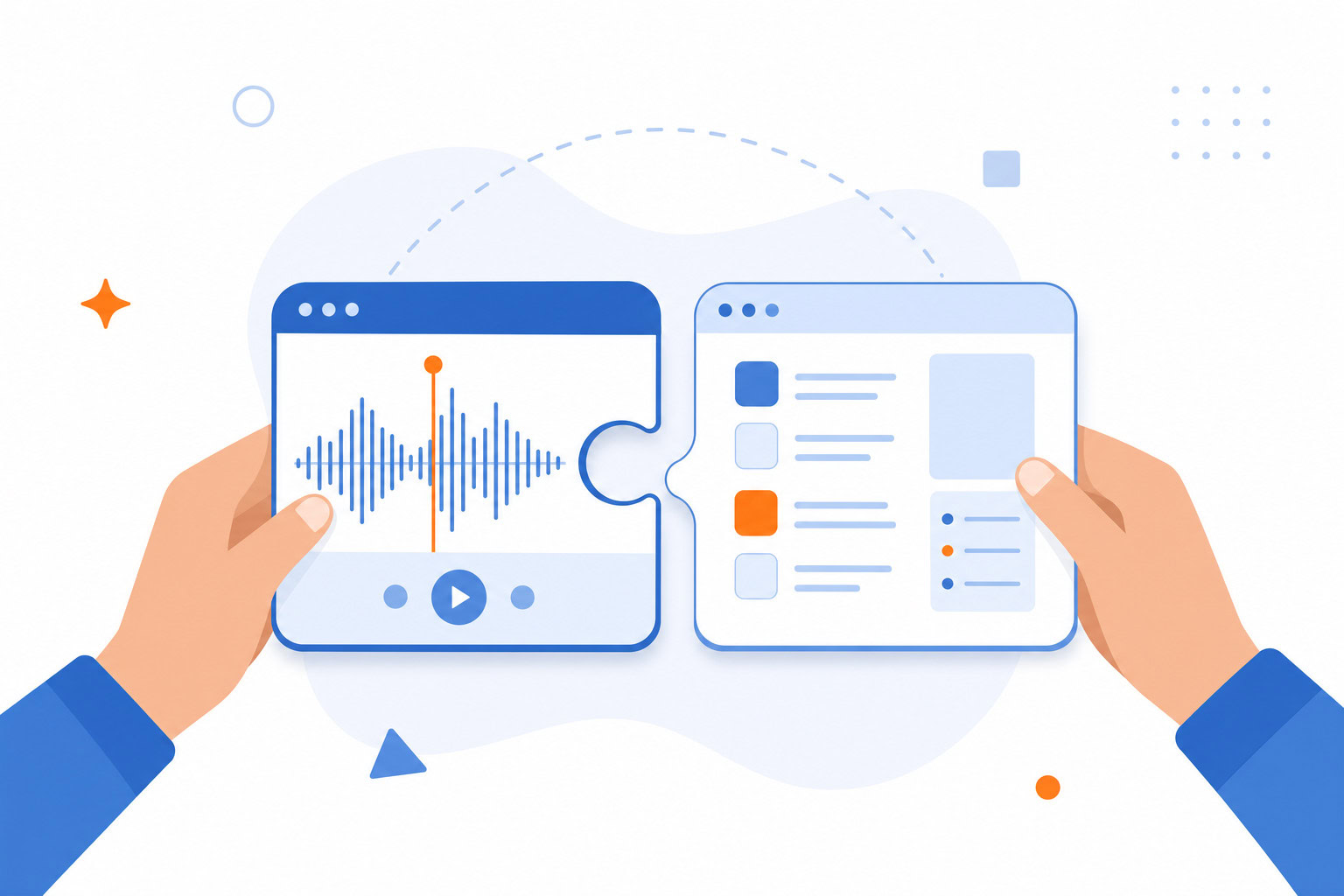
What You’ll Build
| Tool | Best For | Cost | Setup Time |
|---|---|---|---|
| Granola | External client calls | $14/user/mo | 5 min |
| Otter | Internal team calls | $8/mo | 5 min |
| Plaud | In‑person meetings | $159 + $8/mo | 10 min |
| Zapier + Task Manager | Automated follow‑ups | $20/mo | 15 min |
How I Evaluated This Setup
I evaluated this guide based on whether the workflow reaches the promised outcome quickly, how much setup it requires, and where people usually overcomplicate the process. The goal is not to make the setup look clever. The goal is to make it usable in real work.
What You’ll Need
For the basics (30 minutes):
- One AI meeting note tool (I’ll help you pick below)
- A task manager (Todoist, Things, Notion, whatever you already use)
- About $14-20/month
For the full pipeline (2-3 hours):
- Everything above, plus
- Zapier or Make ($20-30/month)
- An email tool that supports drafts (Gmail works)
Optional but useful:
- Plaud device for in-person meetings (~$159 + subscription)
- A CRM if you’re in sales or consulting (HubSpot, Airtable, etc.)
Step 1: Pick Your Capture Tool
Don’t overthink this. There are really only two questions:
Do you take meetings with external people (clients, investors, prospects)?
Get Granola ($14/user/month, Business — there’s no separate individual tier). It records from your device audio. No bot joins the meeting. Nobody knows you’re recording. This matters more than you think… I’ve had clients refuse to talk openly when they saw a recording bot.
Are your meetings mostly internal (team syncs, standups)?
Get Otter ($8.33/month annual). It sends a bot into your Zoom, Teams, or Google Meet call. Everyone sees it, but for internal meetings, nobody cares. Cheaper than Granola and has a real free tier (300 min/month) to try first.
Do you meet people in person a lot?
Add a Plaud device ($159 + ~$8-20/month). It’s a small physical recorder you clip to your shirt. Works offline, no Wi-Fi needed. I carry mine to every conference, coffee meeting, and dinner.
That’s it. Pick one (or two if you do both virtual and in-person) and move to step 2.
Step 2: Set Up the Tool
If you chose Granola:
- Download from granola.ai (Mac or Windows)
- Create an account and grant audio permissions
- Start a meeting on any platform… Zoom, Teams, Google Meet, whatever
- Granola auto-detects the meeting and starts capturing
- During the call, jot rough notes in the Granola window. Just keywords. “Pricing.” “Follow up with Sarah.” “Decision: go with option B.”
- When the call ends, click “Enhance Notes”
- Granola combines your notes with the transcript and builds structured summaries with action items
Pro tip: Your rough notes guide the AI. If you don’t type anything, you’ll get a generic summary. If you type what matters, the summary focuses on those topics. Spend 30 seconds during the call flagging the important stuff.
If you chose Otter:
- Sign up at otter.ai
- Connect your calendar (Google or Outlook)
- Enable OtterPilot in settings… this is the bot that joins your meetings
- Start a meeting. OtterPilot joins automatically.
- You’ll see real-time transcription during the call
- After the meeting, Otter generates a summary with action items
Pro tip: Check your auto-join settings carefully. By default, OtterPilot might join every meeting on your calendar, including ones where you don’t want a bot. I’d recommend setting it to “ask before joining” rather than auto-joining everything.
If you chose Plaud:
- Unbox the device and charge it (USB-C)
- Download the Plaud app on your phone
- Pair via Bluetooth
- Before a meeting, press the button to start recording
- After the meeting, open the app. It syncs and transcribes automatically.
- Select a template (Meeting Notes, Interview, etc.) for the AI summary
Pro tip: Do a test recording at home first. Learn where the button is, how the indicator light works, and how loud it picks up from different distances. The recording trigger can be finicky… better to figure that out before a real meeting.
Step 3: Build the Post-Meeting Pipeline
This is where most people stop. They get the transcript and the summary, and then… nothing happens. The action items sit in the meeting tool. Nobody assigns them. Nobody follows up. Two days later, the momentum is gone.
Here’s how to close that gap.
The Manual Version (5 minutes after each meeting)
After every meeting, take 5 minutes to:
- Review the AI-generated action items
- Copy each one into your task manager with a due date
- If a follow-up email is needed, draft it now (or use the AI-drafted version if your tool offers one)
I know this sounds obvious. But the number of people who skip this step and then wonder why nothing happens after their meetings… it’s a lot. The AI gave you the action items. Your job is to move them somewhere they’ll actually get done.
The Automated Version (Zapier/Make)
If you’re taking 5+ meetings a day, the manual version doesn’t scale. Here’s the pipeline I’ve built for clients:
- Meeting ends → AI tool generates transcript + summary + action items
- Zapier trigger → New meeting summary detected in Granola/Otter
- Action items extracted → Zapier sends each action item to your task manager (Todoist, Notion, Asana) with the meeting date and assignee
- Follow-up email drafted → Zapier triggers an AI prompt that drafts a follow-up email based on the meeting summary and drops it in your Gmail drafts
- CRM updated → If you use one, the meeting notes get logged against the contact record
I set this up for a client who manages 10 meetings a day and makes introductions constantly. When he says “I’ll introduce you to someone” during a call, the system catches it, drafts the introduction email, and puts it in his inbox. He just hits send. Before this system, those promised introductions were falling through the cracks constantly.
Step 4: Automate Follow-Up Emails
This is the part that impressed my clients the most. One of them started getting feedback like, “How are you so fast with follow-ups?” She was sending detailed emails within 10 minutes of calls ending. Resources mentioned, next steps outlined, sometimes an intro already drafted.
The trick is simple: the AI writes the follow-up, not you.
Basic version (works with any tool):
After the meeting, copy the summary into Claude or ChatGPT with a prompt like: “Based on this meeting summary, draft a follow-up email to {name} that includes the action items we discussed, any resources I mentioned, and a suggested next meeting time.”
Advanced version (fully automated):
Set up a Zapier workflow where the meeting summary auto-feeds into an AI step that generates the email and drops it into your Gmail drafts folder. You review it, make any edits, and hit send. Total time: 60 seconds.
I built a version of this using Lindy for one of my consulting clients. He sends a voice note to Lindy via iMessage right after a call… just 30 seconds of talking… and Lindy transcribes it, drafts the follow-up email, and sends it to his work inbox. He went from spending 20 minutes typing follow-ups to 30 seconds talking into his phone.
Pro Tips From My Daily Workflow
Tip 1: Don’t transcribe everything. Not every meeting needs AI notes. Quick 10-minute standups? Skip it. A brainstorm with your cofounder? Probably skip it. Save AI transcription for meetings with action items, decisions, or information you need to reference later.
Tip 2: Review action items the same day. AI-generated action items are only useful if you move them into your task manager before you go home. If they sit in your meeting tool overnight, they’re dead.
Tip 3: Use the transcript for more than notes. I queue meeting transcripts for weekly synthesis. At the end of the week, I can see patterns across conversations… what topics keep coming up, what clients are struggling with, what ideas are gaining momentum. The transcript is a data source, not just a record.
Tip 4: Set up a “meeting intelligence” folder. I save all my transcripts as plain text files in a Google Drive folder. This gives me a searchable archive of every meaningful conversation I’ve had. Six months from now, when I need to remember what a client said about their budget, I can search for it instantly.
Common Mistakes
Mistake 1: Recording everything. It creates noise. You’ll never review 40 hours of transcripts. Be selective.
Mistake 2: Not checking the summary. AI summaries are 90% accurate, not 100%. Always skim the action items before sending them anywhere. I’ve caught wrong names, wrong numbers, and hallucinated deadlines.
Mistake 3: Not telling people you’re recording. Even if your tool doesn’t show a bot, check your local laws on recording consent. Some states and countries require all parties to consent. I’m not a lawyer… look this up for your jurisdiction.
Mistake 4: Thinking transcription = productivity. The transcript is step one. The system is everything after. If you set up AI meeting notes but never build the pipeline to action items and follow-ups, you’ve just created a fancy filing cabinet.
What This Looks Like When It’s Working
When the full system is running:
- You finish a meeting and the summary appears automatically
- Action items land in your task manager within minutes
- A follow-up email draft sits in your inbox ready to review and send
- Your CRM updates with the meeting notes
- The transcript gets archived for future reference
The total manual effort per meeting: about 60 seconds of review. Everything else happens automatically.
That’s what AI meeting notes are supposed to do. Not just record what happened… but make sure something actually happens next.
FAQ
How long does it take to set up an AI meeting notes workflow?
Most people can get the basic version working quickly if they start with the core workflow first and save the optional improvements for later.
Do I need paid tools for AI meeting notes?
Not always. Start with the minimum setup that reaches the result, then upgrade only when a paid feature removes a real bottleneck.
What’s the biggest mistake people make with AI meeting notes?
They usually add too much complexity before the basic process is working consistently. Simpler setups are easier to keep using.
What happens if I stop paying for Zapier — do my existing automations still work?
No. Zaps stop running the moment your subscription lapses or you drop below the free tier’s 100-task limit, so the automated pipeline pauses immediately. Your capture tool (Granola, Otter, or Plaud) and your task manager keep working independently — you’re just back to manually copying action items until you resubscribe or rebuild the pipeline within the free tier’s limits.
Next Step
Recommended for you
Want the full system? 25X is the flagship productivity system we teach.
Explore 25X →