Last updated: 2026-07-06
Most people treat their contact list like a graveyard. It is full of names they used to know but have never touched since the last meeting. You try to keep it alive but end up doing the same thing over and over. You copy a name from LinkedIn. You paste it into a spreadsheet. You write a note about what they do. Then you forget to follow up because there is no system in place.
I tested Clay to see if it could fix this. I did not want another tool that just stores data. I wanted a system that acts as the brain of an autonomous networking agent. The goal is to shift your role from data entry clerk to quality control manager.
Here is the quick verdict. If you are tired of manually updating contact info and want a system that ingests real-time data to keep your relationships warm, Clay is the tool to use. It is not perfect. The credit system can get tricky and costs can spike if you are not careful. But for building a Context-First CRM where AI handles the heavy lifting, it is the best option I have tested.
The Core Idea: Your CRM as an Agent
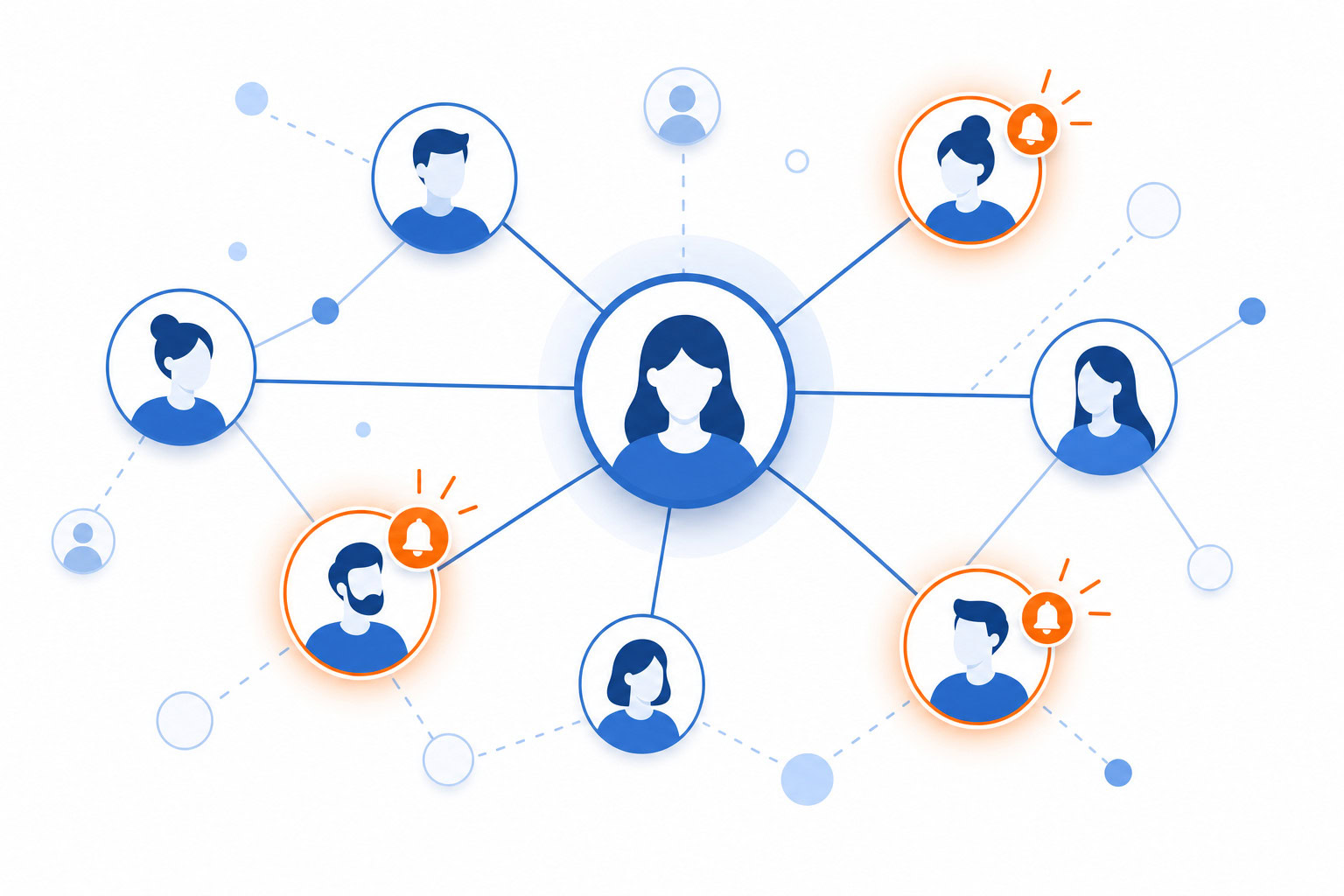
The traditional CRM is a database. You put information in, and it sits there until you pull it out. An AI-powered CRM is different. It is an active agent that watches your network, updates its own knowledge, and suggests the next step.
I built a system where AI agents automatically pick up tasks from my backlog. They enrich contact information, draft follow-up emails, and update records while I focus on high-level decisions. This is the mindset shift. You are not building a list. You are building a workforce.
When I showed Mary what I had built for content planning, the transformation was immediate. We were manually adding topics to Jira one by one. It was boring work. I built a Claude skill that did it automatically. The same logic applies to your network. If you repeat a task, build a system to eliminate it.
This guide walks you through setting up Clay as that system. We will move from a static spreadsheet to a dynamic, AI-driven relationship engine.
Step 1: Define Your Personal CRM Schema
Before you connect any tools, you need to decide what data matters. Most people start with Name and Email. That is not enough for an AI agent. You need context.
Create a spreadsheet or a Clay project with these columns:
- First and Last Name
- Current Role
- Company
- Last Interaction Date
- Next Action
- Relationship Status (e.g., Active, Cold, Lead)
- Key Interests (This is where your AI context file will live)
The “Key Interests” column is critical. This is where you tell the AI what to look for. Do you care about their latest post? Their new job? Their company funding? Define this upfront so the AI knows what to prioritize.
Step 2: Import Your Existing Contact List
You likely have a CSV file from Google Contacts, LinkedIn, or your current CRM. Clay can ingest this directly.
Upload your file to Clay. The system will map your columns to its internal data points. If you have a column for “Company,” Clay will automatically try to match it to a verified company profile.
This step is fast. The real work happens in the next phase where you tell Clay how to find the missing pieces.
Step 3: Configure the ‘Context File’ for Personalized AI Behavior
This is the most important step. You need to give Clay the instructions on how to behave. Think of this as your “identity file” for the CRM.
I spent the last few weekends building context files for everything. My values, how I work, my health patterns, my projects. Now when I need to write a LinkedIn post or create content, I just point the AI to the right folder. It uses all that context to produce work that sounds like me.
Do the same for your CRM. Create a text file or a document that explains:
- Your networking goals. (e.g., “Find partners for my AI workshop,” “Connect with investors in the US”)
- Your voice and tone. (e.g., “Casual, direct, no corporate jargon”)
- Your follow-up rules. (e.g., “If they changed jobs, send a congrats message. If they posted about AI, share a relevant resource.”)
Upload this context file to Clay. When you run an enrichment workflow, Clay will use these rules to decide what data to pull and how to frame the next step.
Step 4: Build the Enrichment Workflow
Now you set up the automation. Clay connects to data providers like Apollo, People Data Labs, Clearbit, and Crunchbase.
Create a workflow in Clay that runs on a schedule or when a new contact is added.
- Trigger: New row added to the sheet.
- Action: Enrich with LinkedIn data (current role, company).
- Action: Enrich with Twitter/X data (recent posts, bio).
- Action: Enrich with company data (funding, employee count).
- Action: Update the “Key Interests” column based on the new data.
This step turns a static row into a living profile. You no longer have to guess if someone is still at that company. Clay checks it for you.
Step 5: Set Up Automated ‘Claygent’ Tasks for Follow-ups
Once the data is fresh, you need to act on it. This is where the “Claygent” comes in.
Set up an automation that triggers when a specific condition is met. For example:
- Condition: A contact’s company just raised funding.
- Action: Draft a personalized email congratulating them and offering to discuss their growth.
- Condition: A contact hasn’t been contacted in 6 months.
- Action: Create a task to send a “checking in” message with a relevant article.
These tasks appear in your dashboard as actionable items. You review them. You tweak the draft if needed. You hit send. The AI did the lifting. You did the quality control.
Step 6: Create a ‘Quality Control’ Dashboard for Human Review
You do not want to blindly trust the AI. You need a place to review its work.
Create a dashboard view in Clay or connect it to a tool like Airtable or Notion. This view should highlight:
- Recent updates: What data changed in the last 24 hours.
- Action items: Which contacts need a follow-up.
- Credit usage: How many credits you have used today.
I demonstrated how to bridge meeting transcripts into a fully automated workflow where an AI agent identifies attendees, matches them to contacts in Airtable, and populates action items directly into the CRM. This eliminates the manual step of downloading transcripts and entering data. Apply this same logic here. Let the AI find the connections. You verify them.
Step 7: Connect External Triggers
Make your system listen to the world. Connect Clay to your calendar, your email, or your meeting tools.
If you use Granola or Otter for meeting transcripts, set up a webhook that sends the transcript to Clay. The AI can then:
- Identify who was in the meeting.
- Find their contact records.
- Add a note about what was discussed.
- Create a follow-up task for tomorrow.
This keeps your CRM in sync with your real life without you having to open it.
Step 8: Optimize Credit Usage and Cost Management
This is the tricky part. Clay uses a credit-based system. Different actions cost different amounts of credits. Enriching a single contact might cost 1 credit. Enriching 1,000 contacts might cost 1,000 credits.
Clay has flat, named pricing tiers: Launch at $185/month (2,500 Data Credits + 15,000 Actions) and Growth at $495/month (6,000 Data Credits + 40,000 Actions). Even within a tier, the total cost can still creep up if you are not careful — failed lookups, top-ups beyond your allowance, and external integrations like Sales Navigator can add to your bill.
Here is how to manage it:
- Start small. Test with 50 contacts before scaling to thousands.
- Monitor your burn rate. Check your credit usage every week.
- Use filters. Only enrich contacts that matter to your current goals. Do not enrich your entire database if you only need to reach out to 10 people this week.
- Be aware of hidden costs. Some data providers charge extra for specific fields. Read the fine print.
I noticed Mary was manually adding content topics to Jira one by one. Instead of accepting that as the process, I showed her how to use AI to automate the workflow. What used to be a tedious manual task now happens with a single command. The insight was simple: if you are doing the same task repeatedly, build a system to eliminate it. But you must also manage the cost of that system.
Step 9: Iterate and Refine Prompts
Your first draft of instructions will not be perfect. The AI will make mistakes. It might misidentify a job title or send a generic message.
Review your output. If the AI is missing the mark, update your context file. Tell it to be more specific. Tell it to focus on certain industries. Tell it to use a different tone.
This is an iterative process. You build, you test, you refine. Over time, your system becomes smarter and more aligned with your goals.
Step 10: Launch and Monitor Your 24/7 Networking Agent
Once you are happy with the setup, turn it on. Let it run.
Check your dashboard daily. Review the suggested actions. Send the emails. Update the notes. The system will keep your network fresh and your follow-ups timely without you having to do the heavy lifting.
Pricing Comparison
| Tool | Starting Price | Billing Model | Best For |
|---|---|---|---|
| Clay | Launch $185/month | Flat tier with a credit allowance | Data enrichment and AI workflows |
| Make | Free (limited) | Operations-based (steps) | Connecting apps and complex logic |
| Airtable | $0 (free tier) | Record-based | Database management |
| Notion | $0 (free tier) | Block-based | Note-taking and simple tracking |
Clay is more expensive upfront than a standard CRM, but it replaces the need for multiple data providers. Make is cheaper for simple connections but lacks the deep AI enrichment Clay offers.
Side-by-Side Comparison: Clay vs. Traditional CRM
| Feature | Clay (AI CRM) | Traditional CRM (Salesforce, HubSpot) |
|---|---|---|
| Data Source | Live, aggregated from multiple providers | Static, manual entry or single source |
| Automation | AI-driven, context-aware | Rule-based, rigid |
| Setup Time | 1-2 hours | Days or weeks |
| Cost | Flat tier + credit allowance | Fixed monthly subscription |
| User Role | Quality Control Manager | Data Entry Clerk |
| Flexibility | High, adapts to your context | Low, requires custom config |
My Recommendation
If you are a solopreneur, a sales leader, or a marketer who wants to stop wasting time on data entry, build this system with Clay.
It is not magic. It requires some setup and careful management of your credits. But the result is a network that stays warm and a workflow that feels like you have a personal assistant.
I tested this approach and saw the difference immediately. The manual work disappeared. The focus shifted to strategy and connection. That is what a real AI CRM should do.
FAQ
Q: Is Clay too expensive for individual use?
A: It can be if you are not careful with your credits. Start with a small list and monitor your usage. The free trial helps you test without risk.
Q: Do I need coding skills to set this up?
A: No. Clay has a visual interface for building workflows. You do not need to write code unless you want to customize deeply.
Q: Can I use this for personal networking or just B2B sales?
A: It works for both. The system is about managing relationships, not just selling. You can use it to keep in touch with friends, mentors, or industry peers.
Q: What if the AI gets the data wrong?
A: That is why you need the quality control step. Review the updates before you act on them. You can also refine your prompts to improve accuracy over time.
Recommended for you
Want the full system? 25X is the flagship productivity system we teach.
Explore 25X →